
Overview
Gevme’s latest enhancement enables event organisers to add on-site staff who can manage attendee check-ins—without requiring a Gevme account.
This feature simplifies on-site operations by allowing designated personnel to securely access the onsite module via an SMS link, ensuring a faster and more efficient event check-in process.
How the Feature Works
Organisers can add on-site users directly from the onsite module in the Gevme event dashboard.
A dedicated Onsite Users tab allows you to enter each user’s name and phone number, and optionally send an automated SMS invitation with a secure access link.
Once the user receives the SMS:
- They click the secure link
- Verify their identity using an OTP
- Instantly access the onsite module
From there, they can check in attendees by searching names or scanning QR codes.
Key Features
- No Account Required
On-site users can log in via a secure SMS link and OTP—no account setup needed. - Quick User Setup
Easily add users with just a name and phone number. - Automated SMS Invitations
Send access links instantly upon adding users. - Flexible Access Control
Set custom start and expiry times based on event schedules or specific time ranges. - User Management Tools
Resend invitations or remove users anytime. - Secure Authentication
OTP verification ensures safe and controlled access.
How to Set it Up
Step 1: Access the Onsite Users Tab
- Log in to your Gevme event dashboard.
- Navigate to Onsite from the left-hand menu
- Select the Onsite Users tab
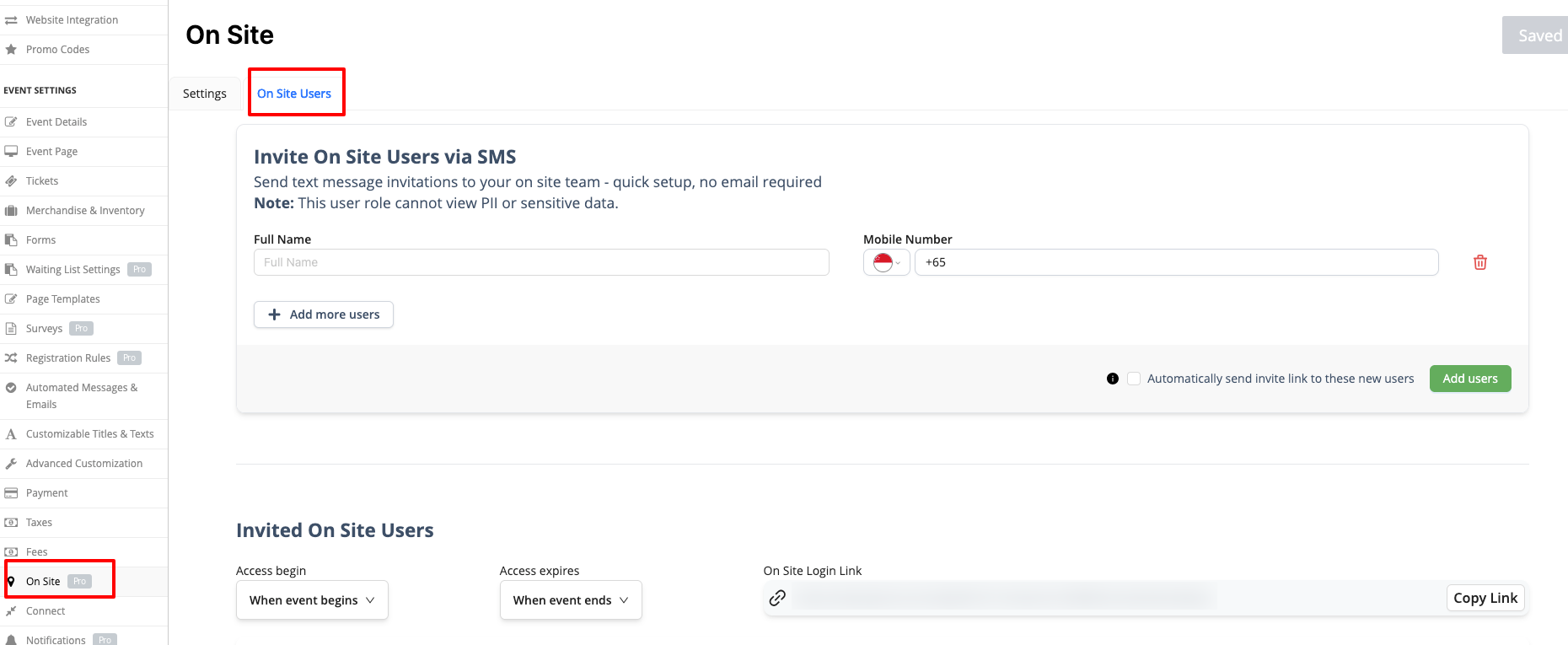
- Enter the user’s Name and Phone Number.
- (Optional) Check Send Invite Automatically to send the SMS immediately
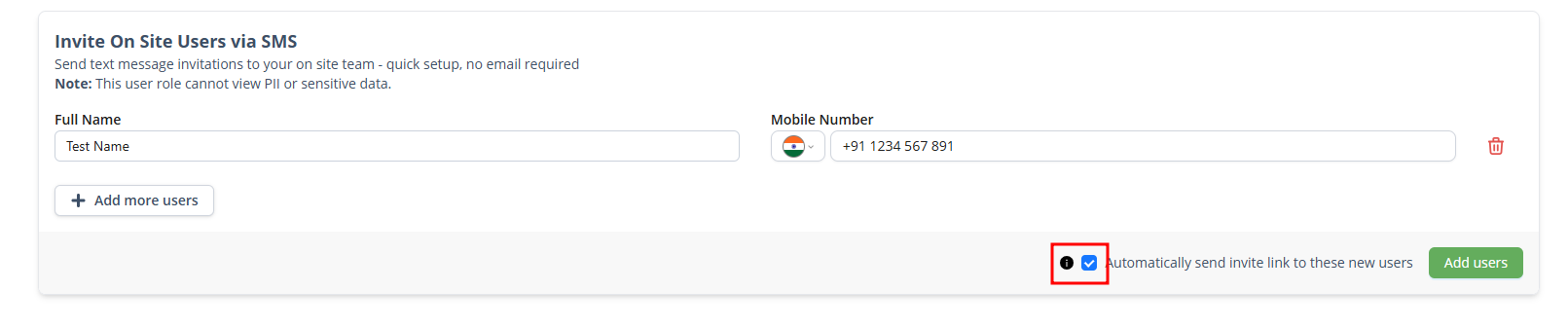
- Click Add more users if needed
- Once done, click Add Users

Step 3: Set Access Validity
- Choose when each user’s access should begin and end:
Match event start and end times, or
Define a custom date and time range

Step 4: On-site User Login Flow
- The staff receives an SMS with a secure link
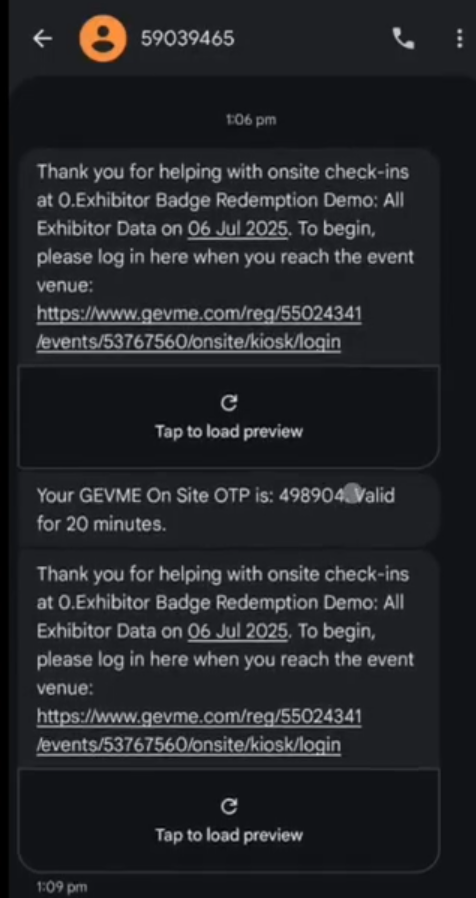
- Clicks the link and selects their country code
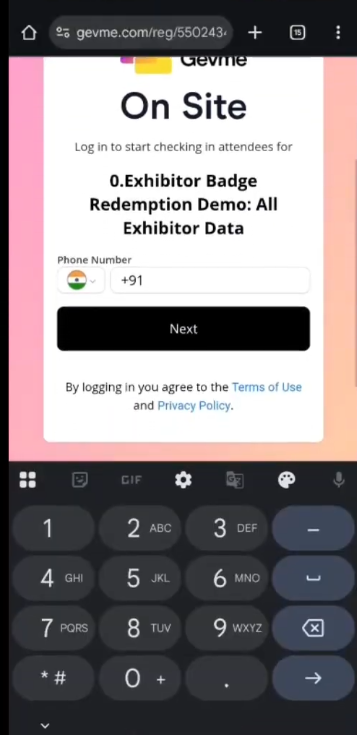
- Enters their phone number to receive an SMS OTP
- Inputs the SMS OTP to log in
- The staff now will gain access to the onsite module
- Users can then:
Search attendees by name
Scan QR codes for check-in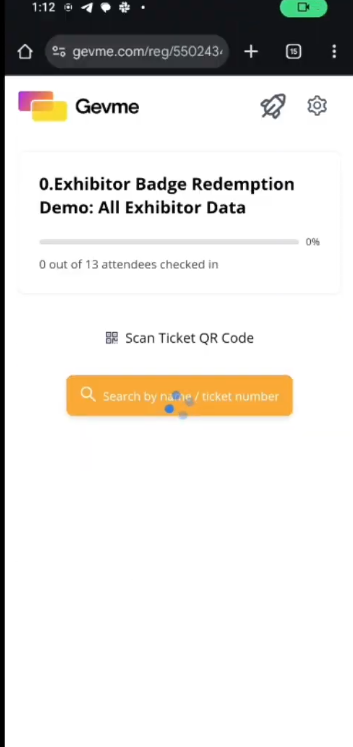
Minimum Browser Requirements
The device’s browser must meet the following minimum requirements:
- Chrome/Edge 90+
- Firefox 88+
- Safari 14+