
Overview
In Gevme, when a buyer or attendee registers to the event but they haven't made a payment yet, by default, they will receive Order Acknowledgement Email together with an Invoice in pdf format.
This invoice is generated by the system for pending payments and can also be downloaded from under the Order from the Event backend.
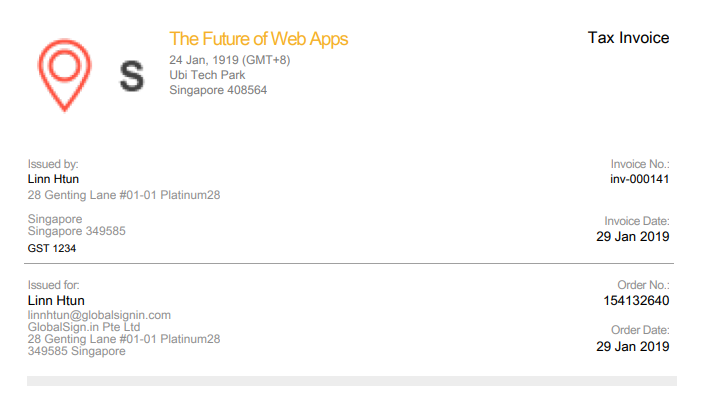
By default, only the first name, last name and email of the buyer will be shown on the transaction document. However, the company name, country as well as the full address of the buyer with postal code can also be shown. It will look something like this:
How to set it up?
Setup Your Buyer Form [Fields from the Buyer Form will be picked on Invoice]
Showing First Name, Last Name and Email fields
In Buyer (as well as Attendee) Form, First Name, Last Name and Email fields are compulsory and can’t be removed. So these data will always be shown in all the transaction documents.
Showing Company and Company Address fields
Company/Company Address are predefined fields, so simply add them to your form and they will show in the transaction documents.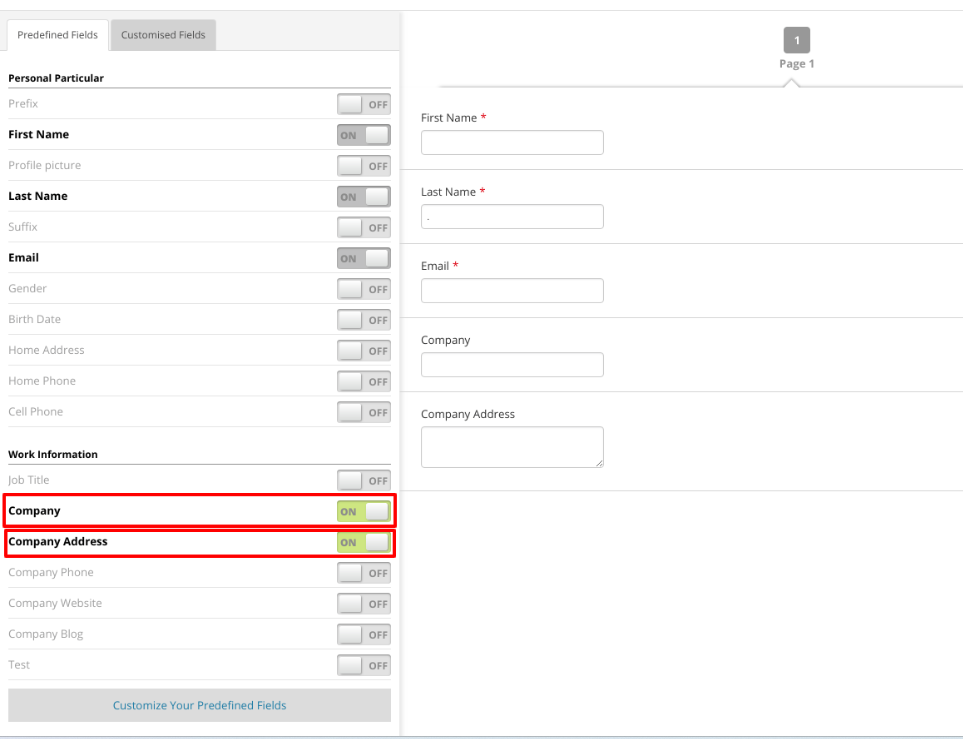
Showing Postal Code and Country Fields
Here’s the tricky part. If you want to show the Postal Code and Country fields in the transaction documents, you will have to follow some specific format for their field names.
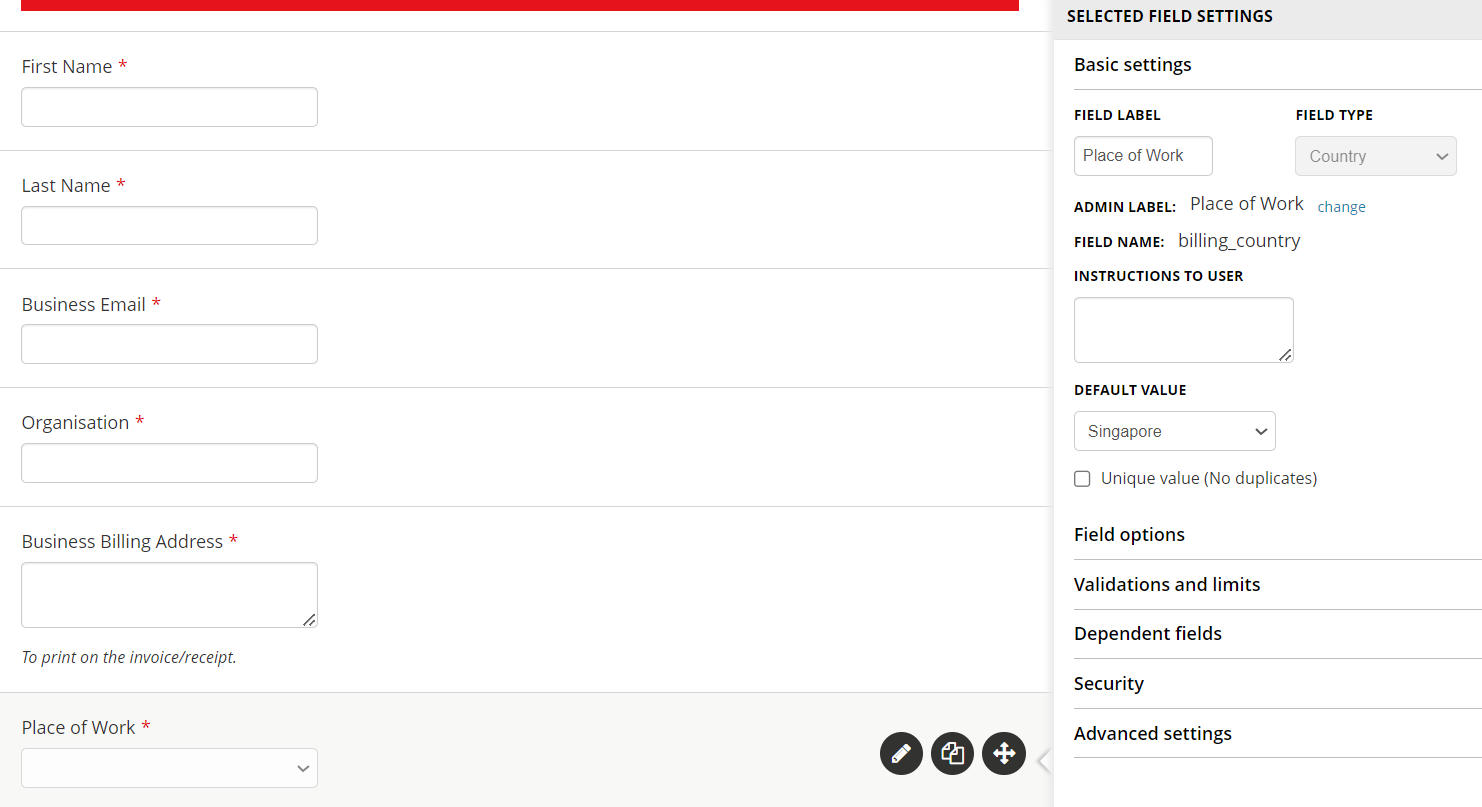
For Postal Code, the field name must be billing_postal and for the Country field to show, the field name must be billing_country.
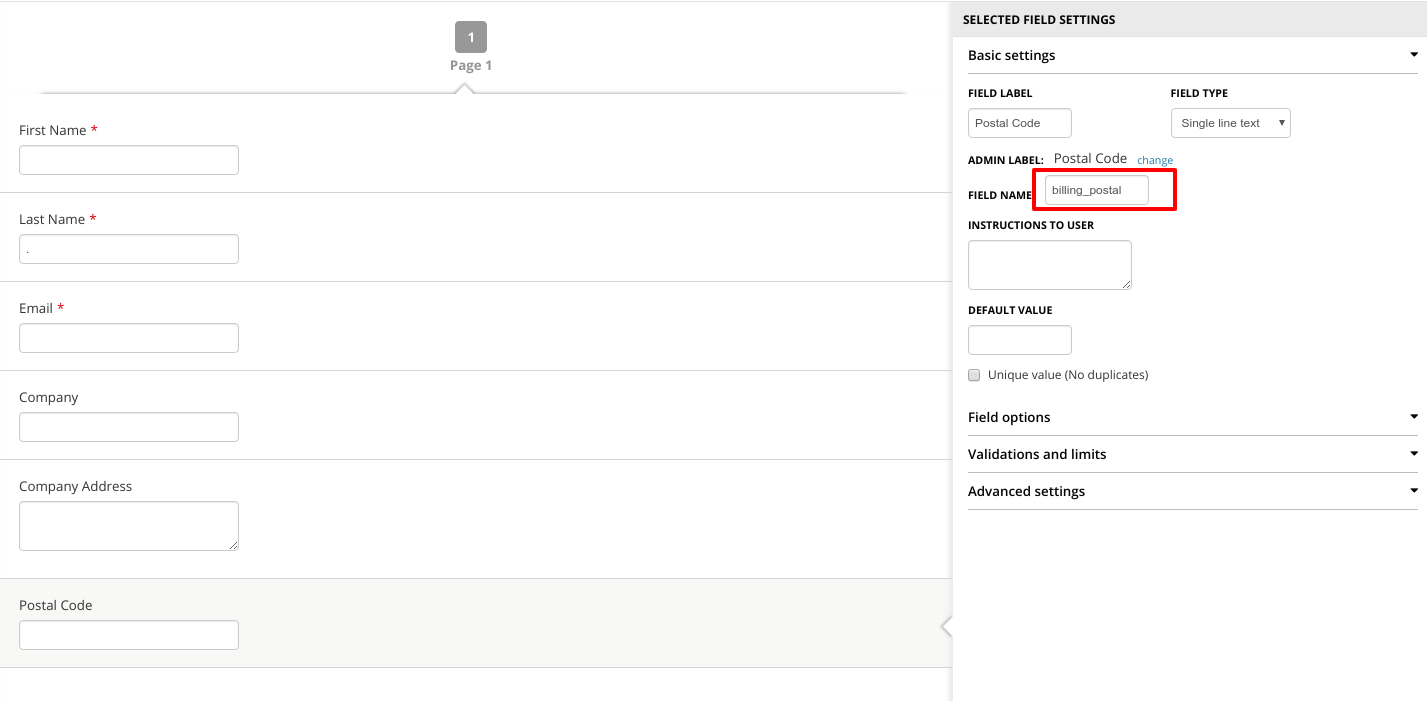
*Note: billing_country has to always remain as field type: country, if Tax is enabled based on Country.
What if you have fields in the Attendee Form that you would also like to display on the invoice?
For exmaple, if you would like to include two fields from the Attendee form in the invoice: Country Nationality and Company Address.
Here's how you can do it;
Setup Your Attendee Form [Fields from the Buyer Form will be picked on Invoice]
| Field Name | Field Label | Field Name | Field Type [Recommended] |
| Country Nationality | Country Nationality | billing_country | Single Line Text |
| Company Address | Company Address | company_address | Paragraph Text |
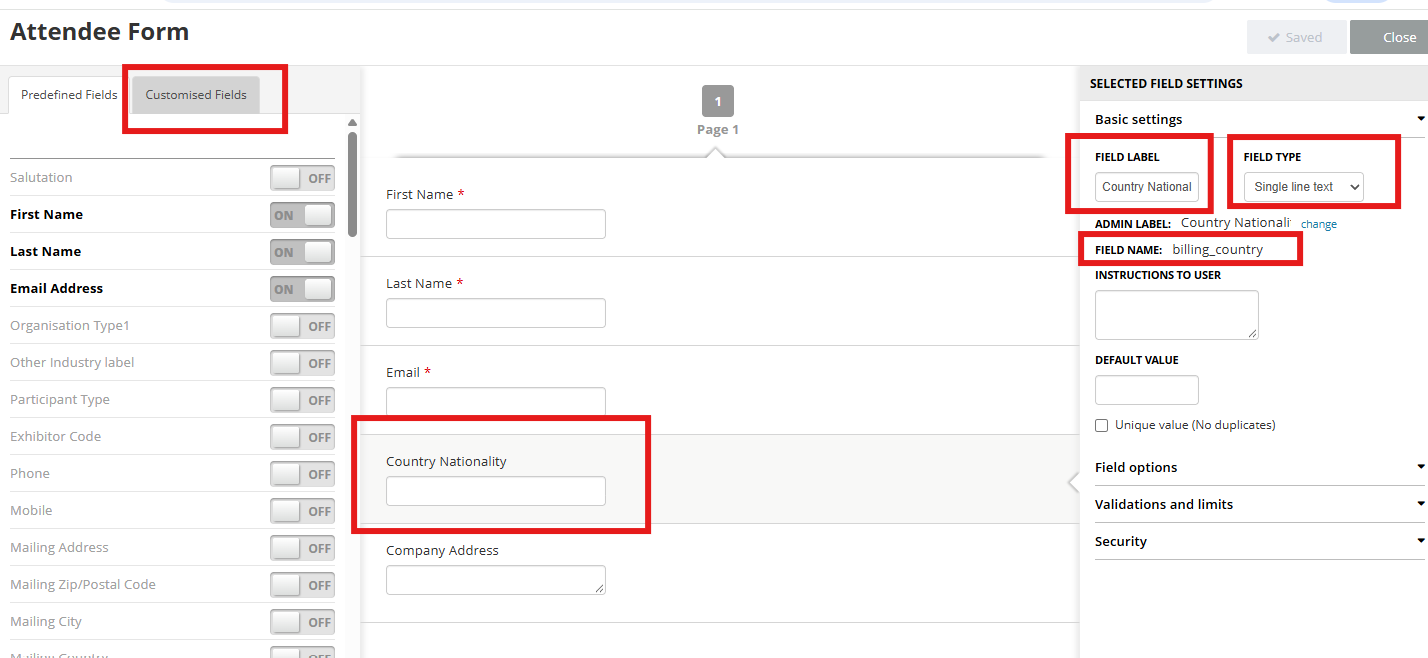
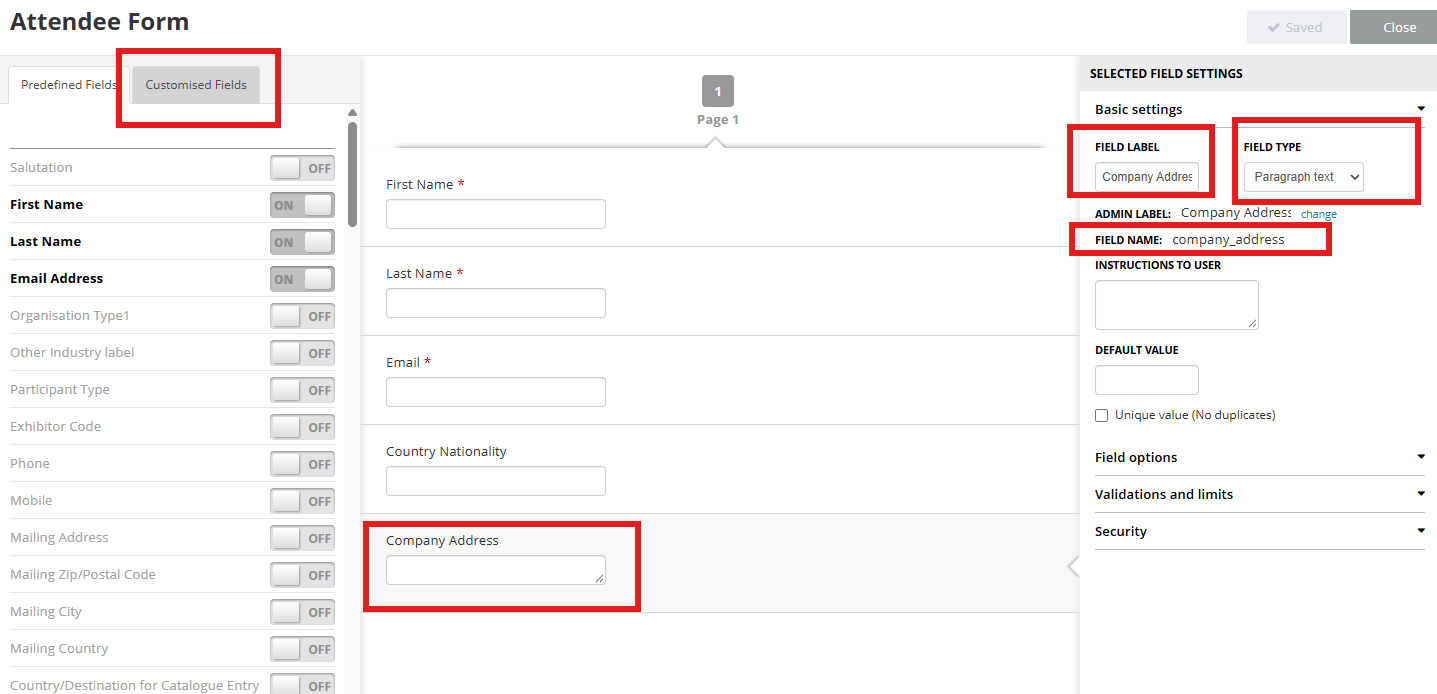
IMPORTANT:
Buyer Form Configuration: Must add the exact fields on the Buyer form as well. Buyer form can be kept disabled.
Logic: During registration, the 1st attendee’s form field values will be auto-copied to the Buyer form fields and the Invoice will show the Name, Company, Company Address, Country, etc
After the configuration the invoice will look something like this: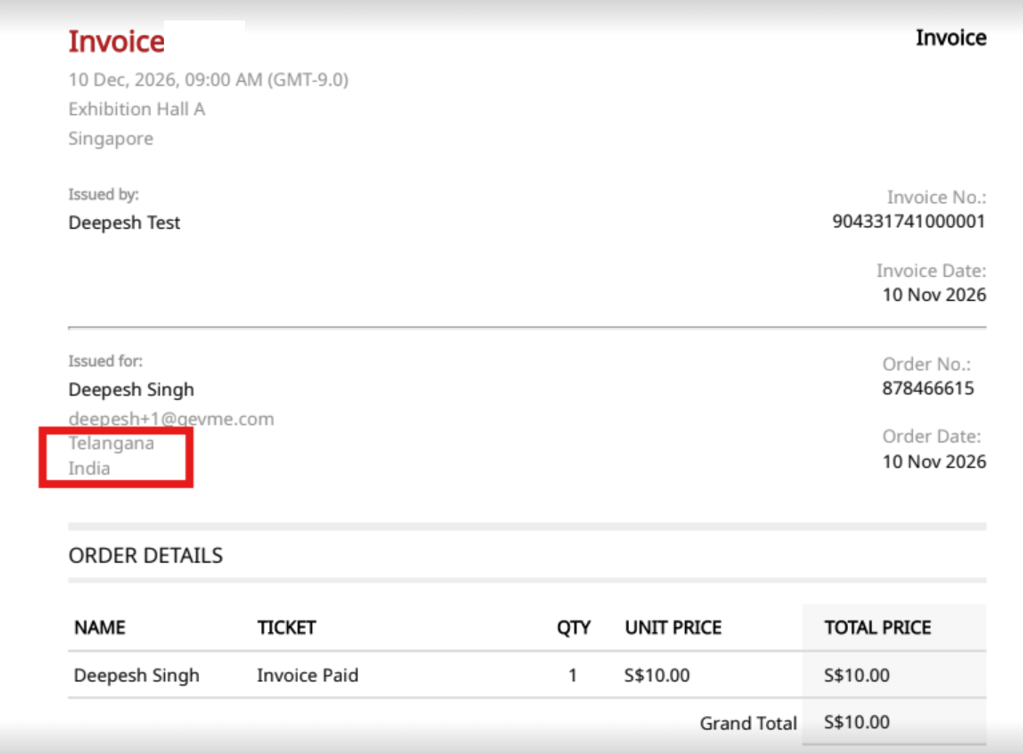
Note: If you’ve turned the buyer form off in your event, you will need to have these fields on the attendee form instead.
This is the magic in GEVME: if the buyer form is turned off, GEVME will use the attendee’s data and use it to populate the buyer data. The attendee effectively then becomes the buyer in that case. And if there are multiple attendees under one order, GEVME grabs the 1st attendee to be used as the buyer.