
Overview
Session Management lets you control how long users remain logged in to the platform and when their sessions automatically expire. These settings help strengthen account security by reducing the risk of unauthorised access - especially on shared or public devices.
All session controls are managed at the organisation level and apply to all users within that organisation.
How the Feature Works
When enabled, organisation admins can define login session limits based on:
- Maximum session duration
- User inactivity
- Browser closure
The system continuously monitors user activity and automatically ends sessions according to the configured rules.
If a user belongs to multiple organisations, the most restrictive session settings will apply.
Key Features
- Configurable maximum session duration
- Configurable inactivity timeout
- Option to end sessions when the browser is closed
- Optional application of session rules to onsite users
- Visibility of active session restrictions under Account → Security
- Built-in safeguards to prevent invalid or conflicting configurations
Benefits for Event Organisers
- Improves security for sensitive event and attendee data
- Reduces the risk of unauthorised access on shared devices
- Gives admins full control over user login behaviour
- Supports compliance with organisational security policies
- Builds confidence for teams managing events across multiple environments
How to Set it Up
- Go to Admin Console > Organisation Settings.
- Open the Session Management section.
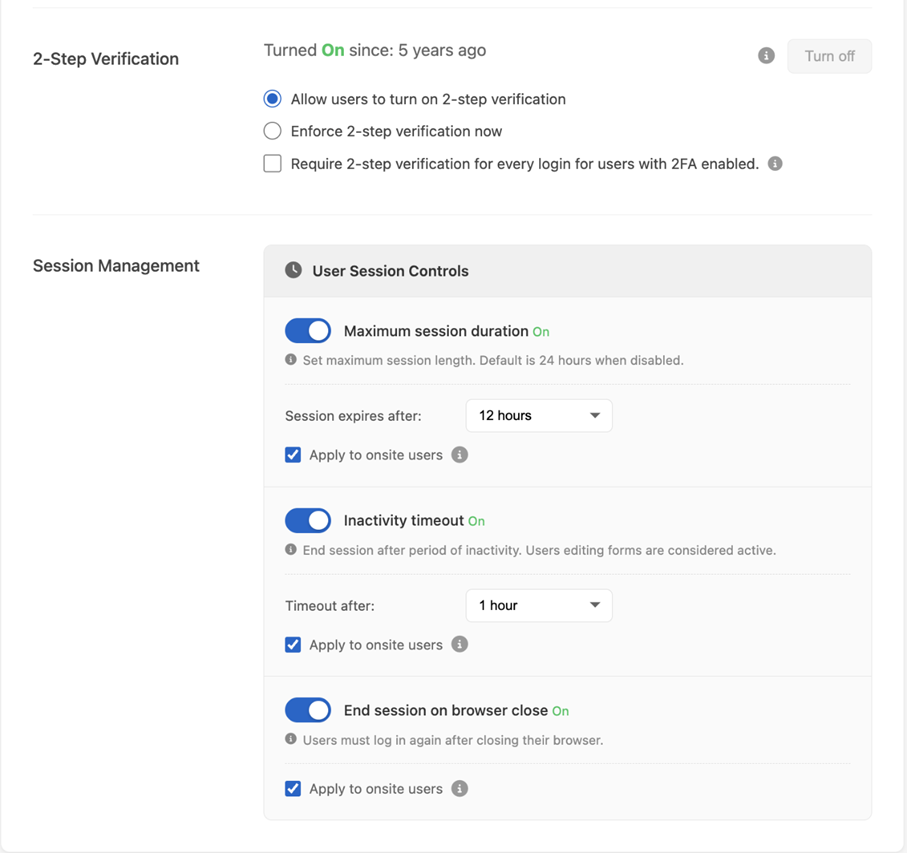
- Configure the following options as needed:
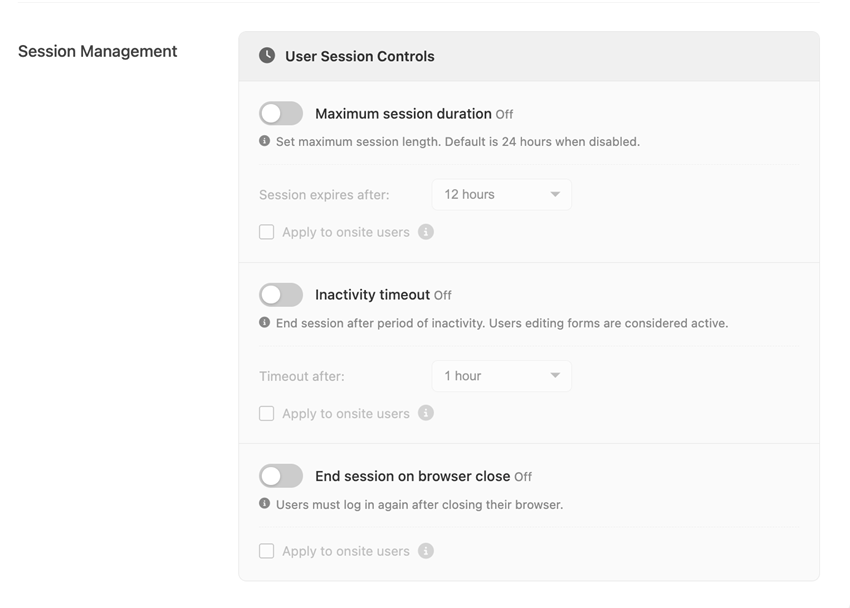
Settings Default
Settings ON:
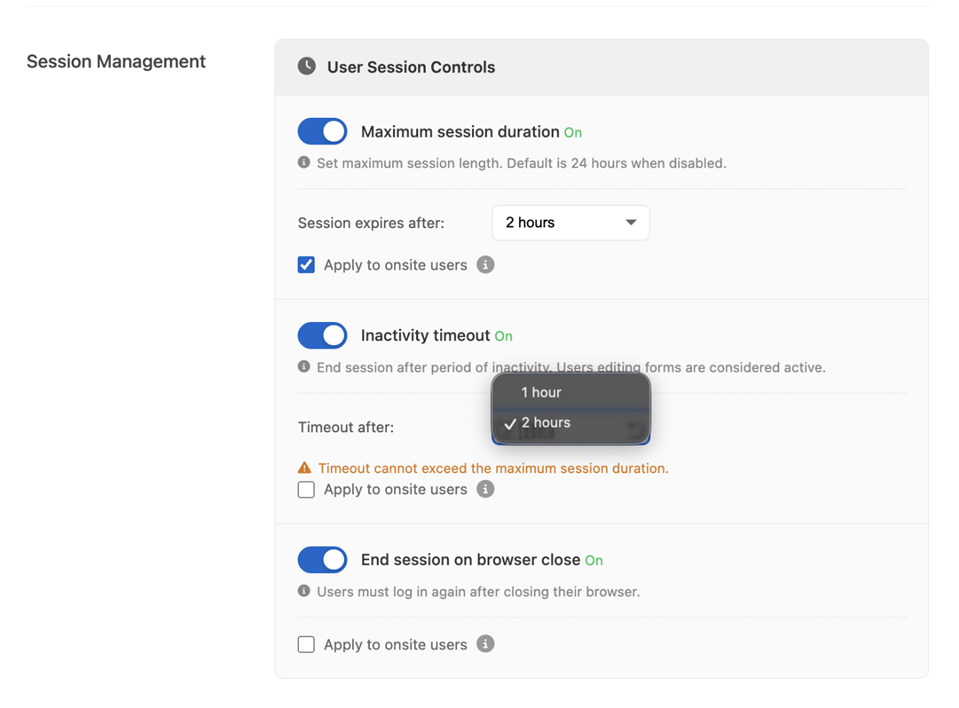
Settings Constraint
Maximum Session Duration
- Choose a session duration of 2, 4, 6, 8, or 12 hours.
- If not enabled, the default maximum session duration is 24 hours.
Mockup Screen: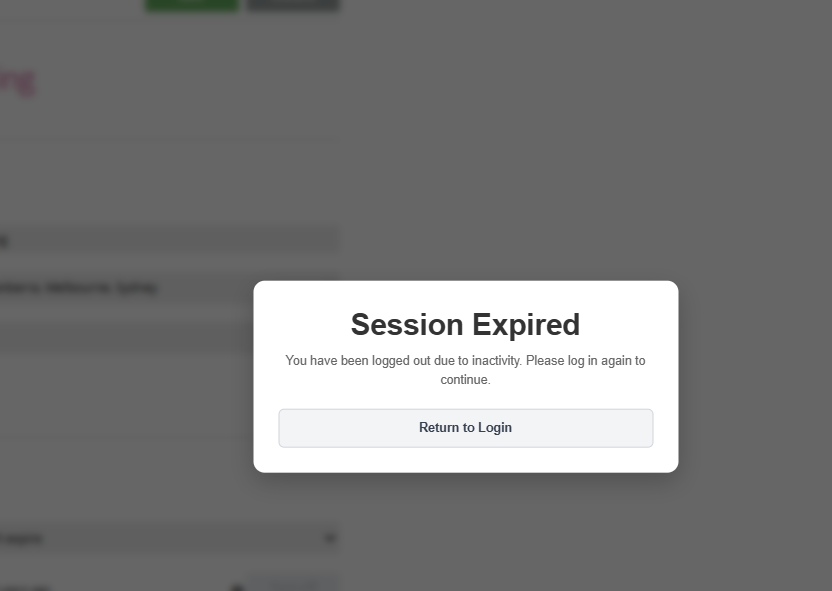
Inactivity Timeout
- Set an inactivity timeout of 1, 2, 4, or 6 hours.
- The inactivity timeout cannot exceed the maximum session duration.
- This setting is disabled by default.
- Users actively working in the app (e.g., editing forms) are still considered active even if no backend requests are made.
Mockup Screen: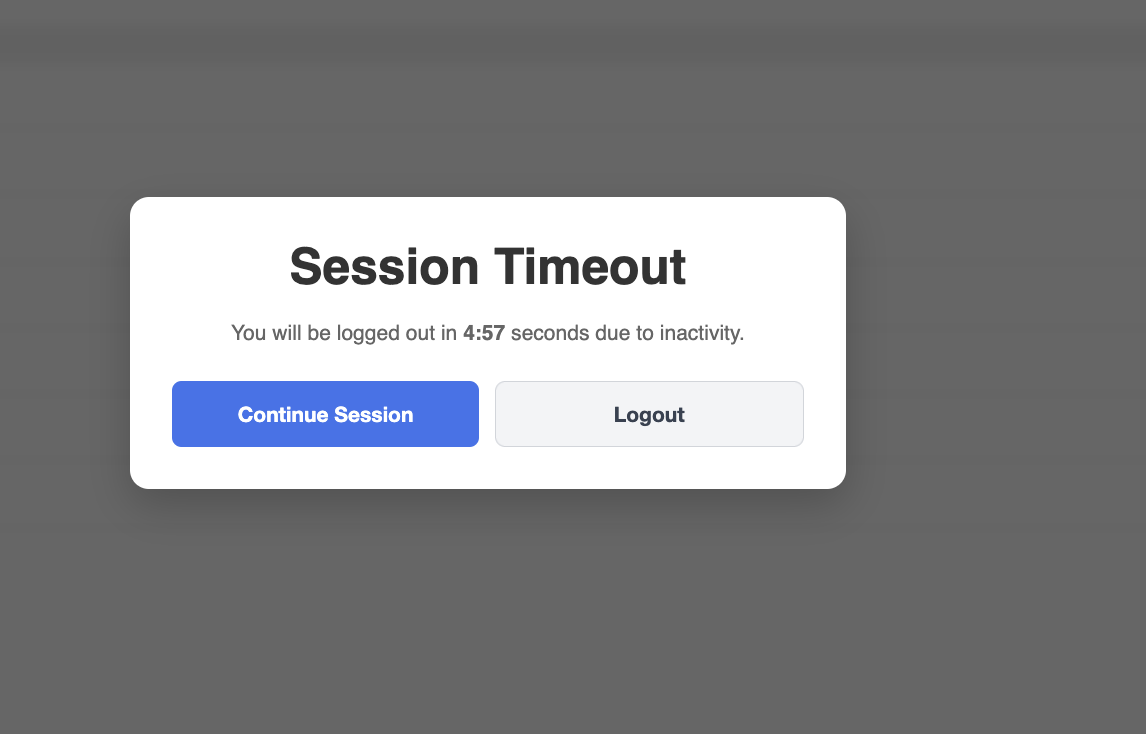
End Session When Browser Is Closed
- Automatically logs users out when they close their browser
- This setting is disabled by default.
- (Optional) Apply these settings to on-site users.
- Save your changes.
Users can view the active session restrictions applied to their account under Account → Security.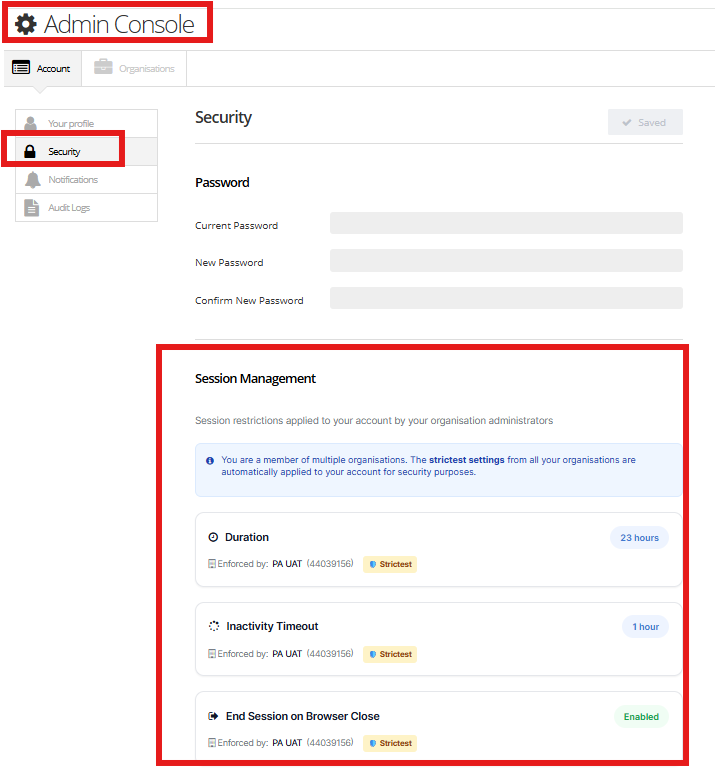
Onsite User Session Duration Configuration
The Onsite module now reads and applies the following organisation-level session settings when they are enabled and configured to apply to onsite users:
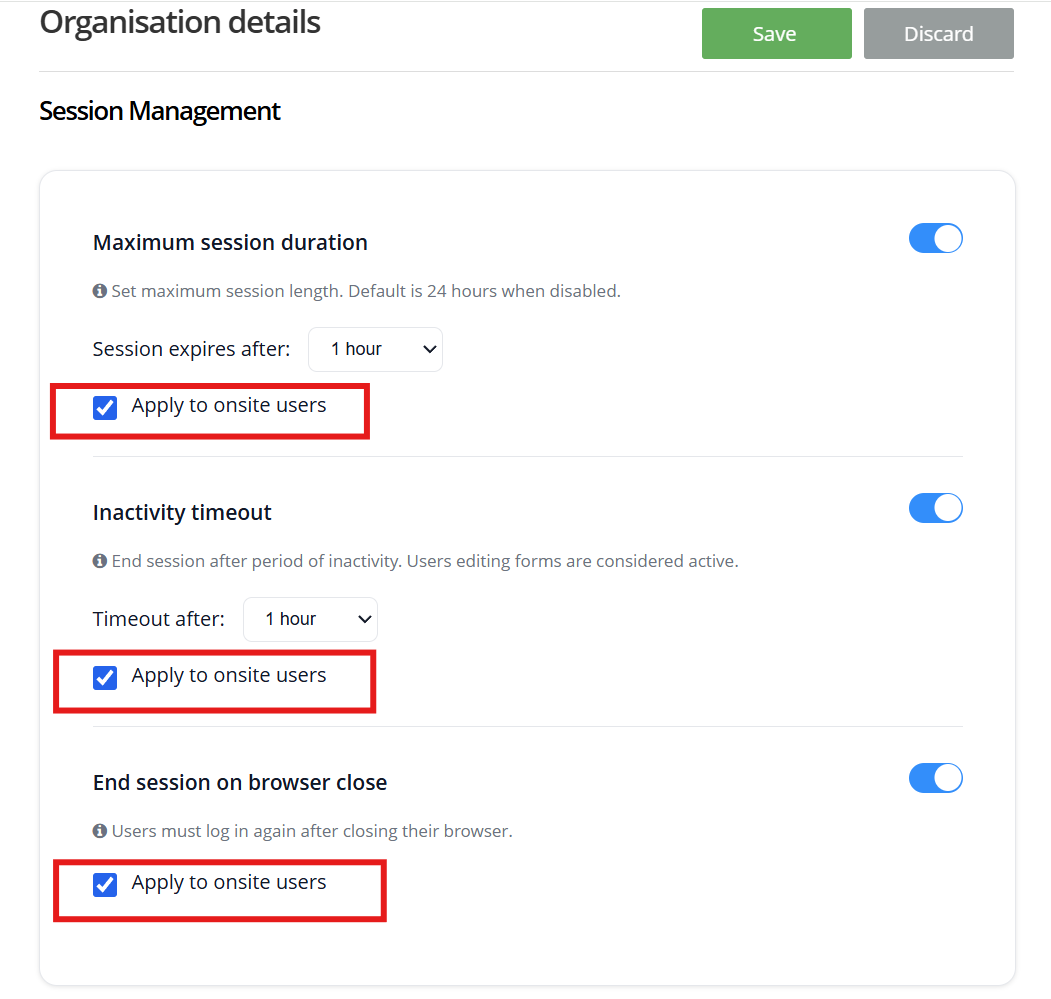
Mockup Screen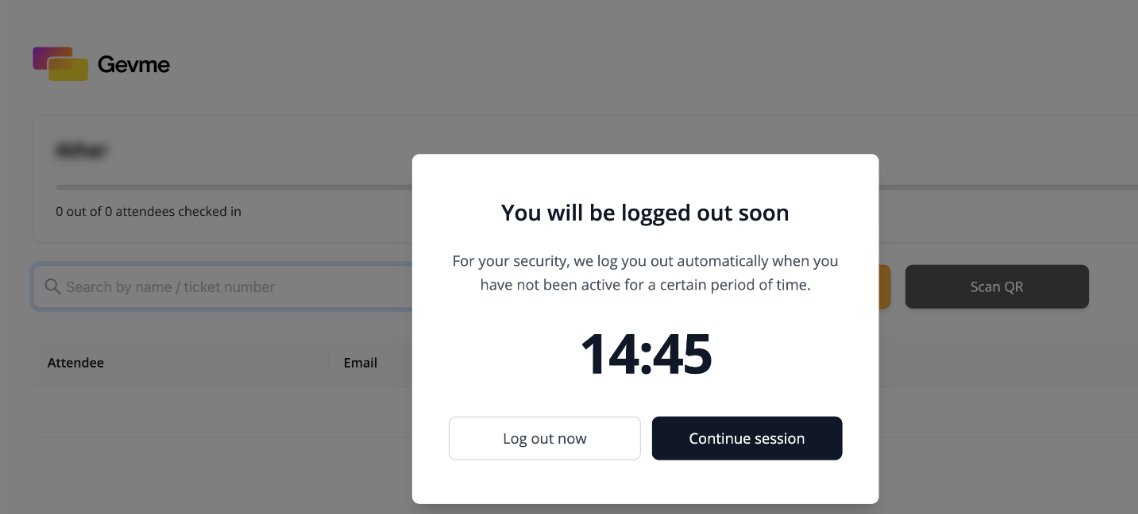
Important Note for Mac users
When End session on browser close is enabled:
- Windows: Closing the browser window usually closes the entire browser app, so users are logged out automatically.
- Mac: Closing a browser window or tab does not close the browser application. The browser continues running in the background, and the session may remain active.
To make sure you’re logged out on Mac, you must quit the browser application completely (for example: Chrome > Quit Chrome or press Cmd + Q).
Once the browser is fully quit, reopening it will require you to log in to Gevme again.
Ready to Try?
Enable Session Management from your organisation settings to strengthen account security and control user login behaviour.
If you need help choosing the right configuration or have questions about how these settings affect your users, feel free to reach out to our support team.