
Overview
The Abandoned Cart feature in Gevme helps event organisers capture attendee information when users drop off during the registration process. By saving partial registrations, organisers can follow up with potential attendees and encourage them to complete their sign-up.
How the Feature Works
- Capture Incomplete Registrations
When a potential Buyer fills in the first three fields of the registration form—First Name, Last Name, and Email—the system automatically saves their details.
Any additional information entered will also be stored.
There is one abandon cart record per Buyer email. - Data Presentation
All captured registrations are displayed in the grid, making it easy for organisers to review and take action. - Re-engagement via reminder emails
Organisers can access abandoned registrations and send follow-up emails containing unique links that allow attendees to continue their registration. - Seamless Registration Resumption
Using the Abandoned Cart link, attendees can resume their registration exactly where they left off—without needing to re-enter previously submitted information.
Enable Abandoned Cart
Abandoned Cart is an add-on feature. To enable it for your event or organisation, please contact:
- Support: cs@gevme.com
- Your Gevme Account Manager or sales@gevme.com
Once enabled, navigate to Manage → Abandoned Cart and toggle the feature on.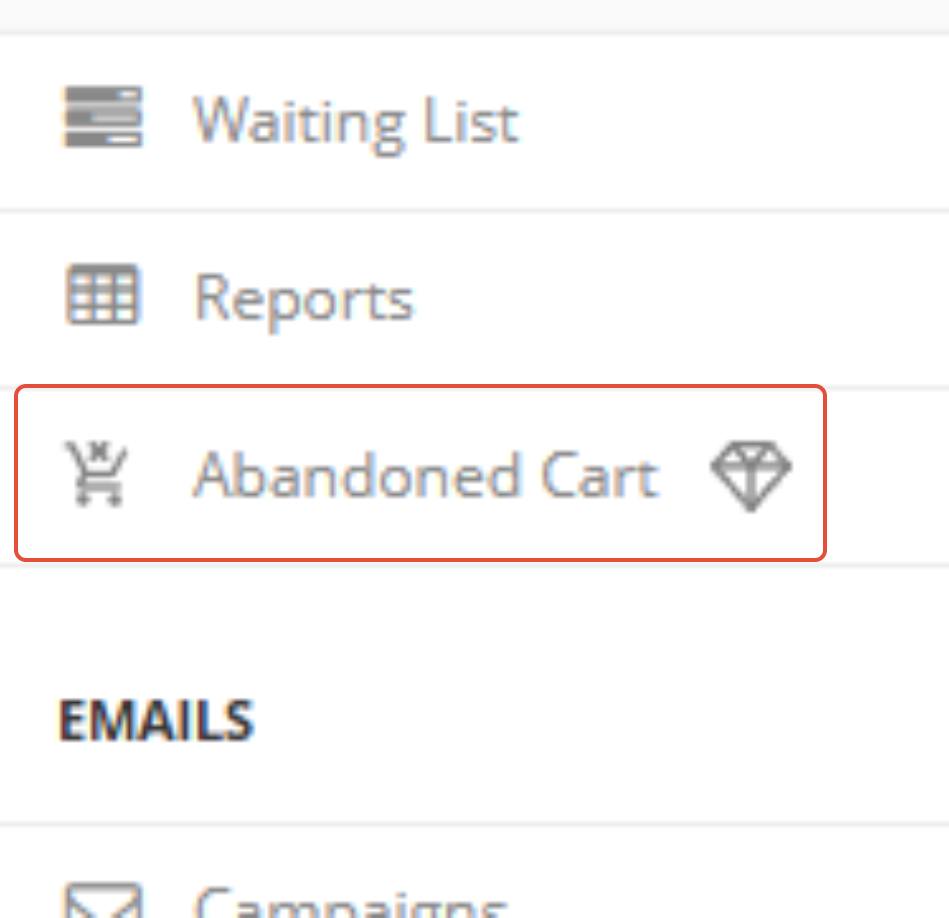
How to Set it Up
1. Enable the Feature
Turn on the toggle to activate abandoned cart tracking.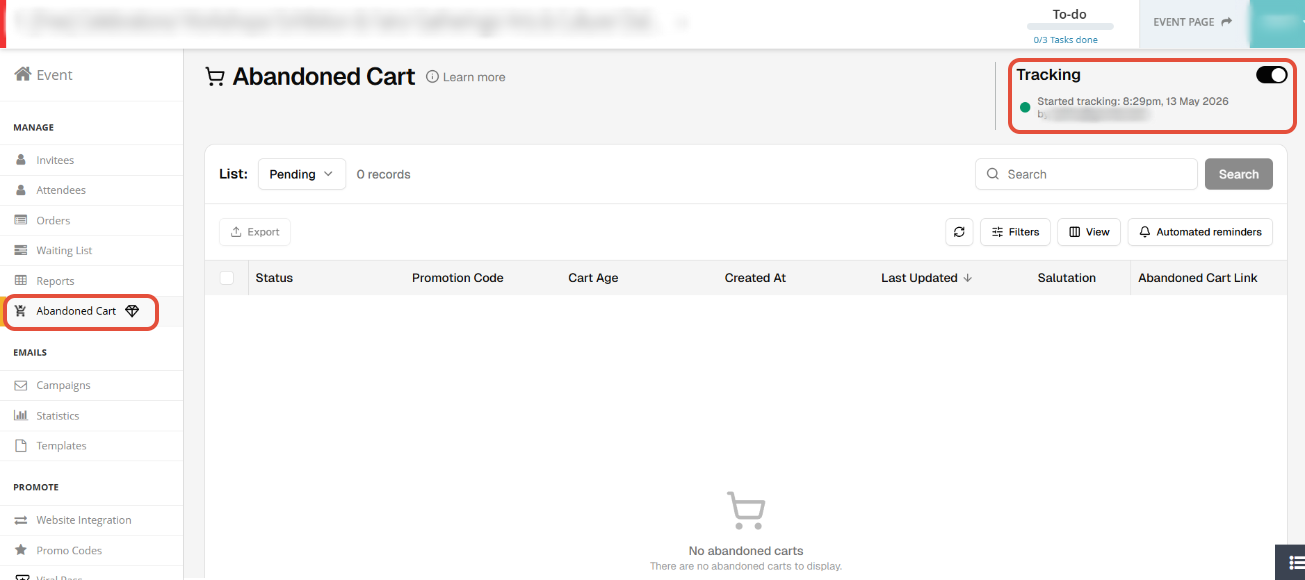
Abandoned Cart grid columns:

Status: Pending or Registered
Promotion Code: The promotion code used during registration
Cart Age: Number of days since the registration was abandoned
Created At: Date/time when the abandoned cart record got created
Last Updated: Date/time when the data was last saved for this record
First Name, Last Name & Email: Registered data of the Buyer/Main attendee
<other fields from the Buyer Form, if any>
Abandoned Cart Link: Personlised link to open the registration form with the previously entered data
2. Configure Follow-Up Emails
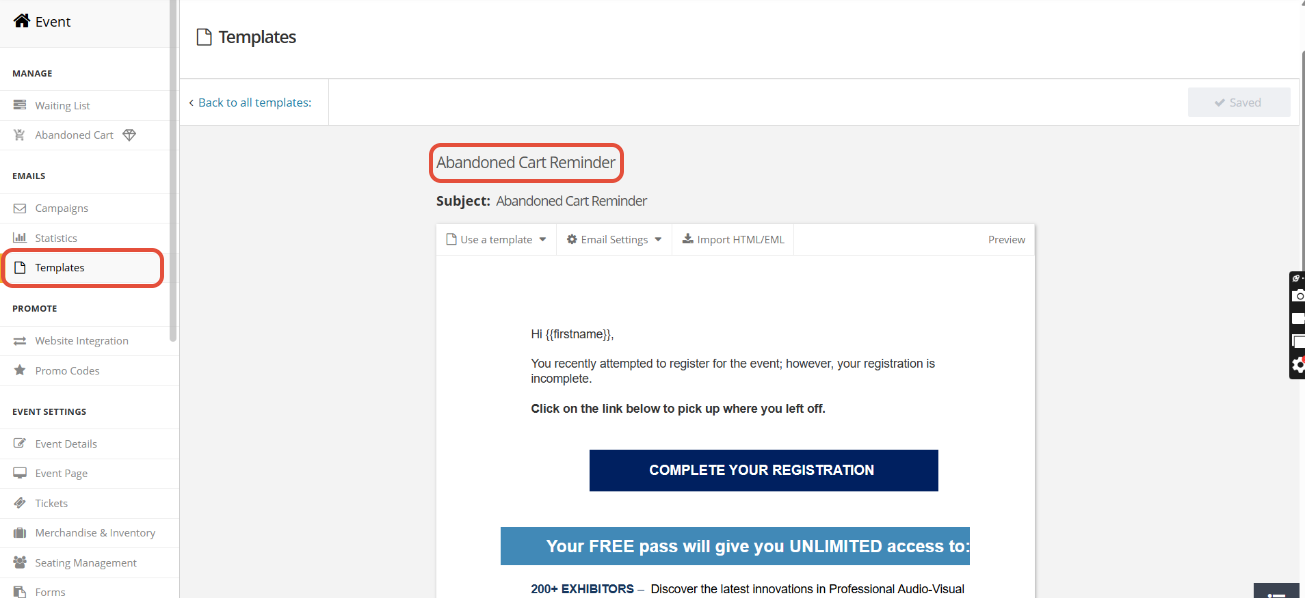
A. Create an Abandoned Cart Email Template
In the Email Template section, create a new template with content designed to encourage attendees to complete their registration.
You can personalise the email using fields available under the Abandoned Cart data section.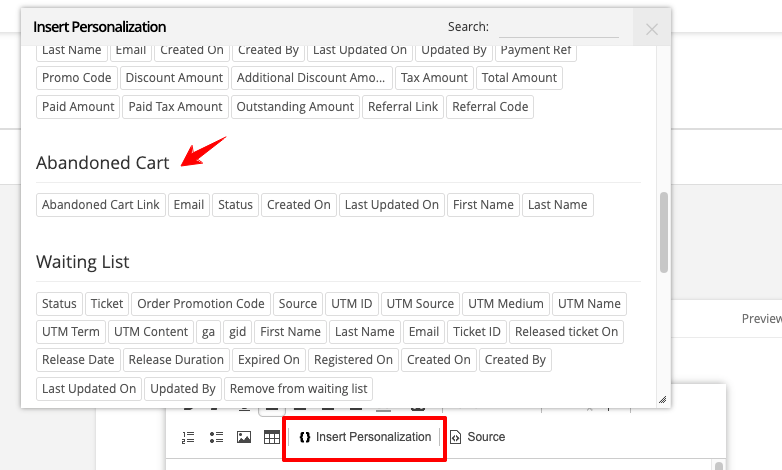
For example: a hyperlink can be embedded within text to redirect users to the Abandoned Cart URL.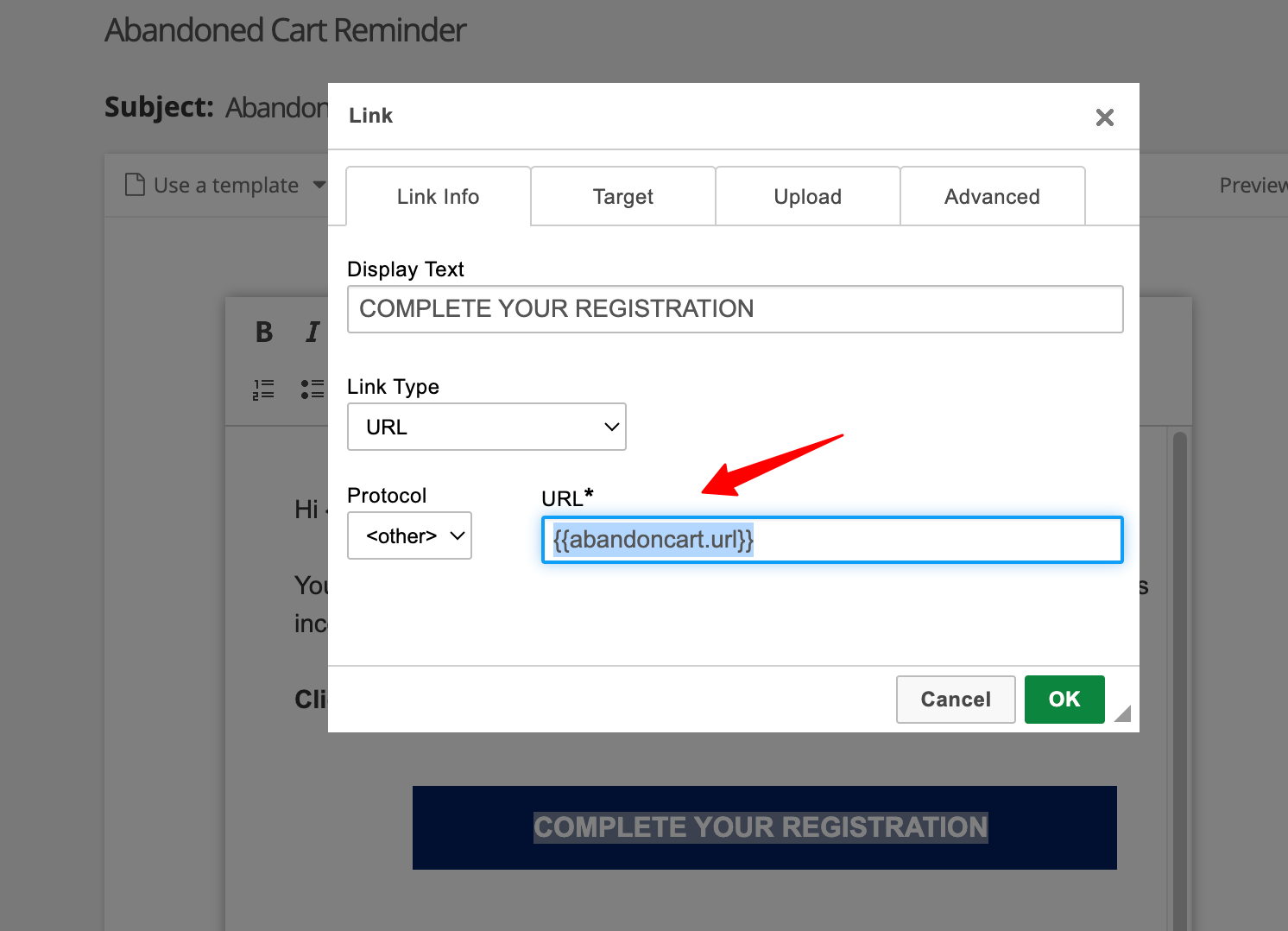
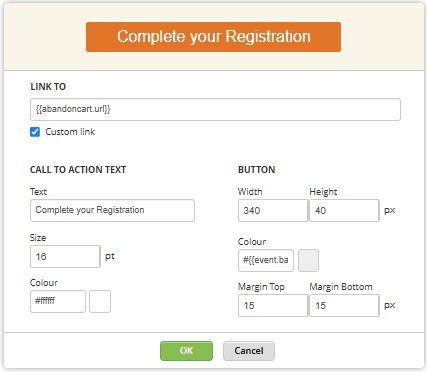
or use the Call to Action button.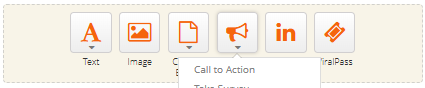
B. Set up Automated Reminders

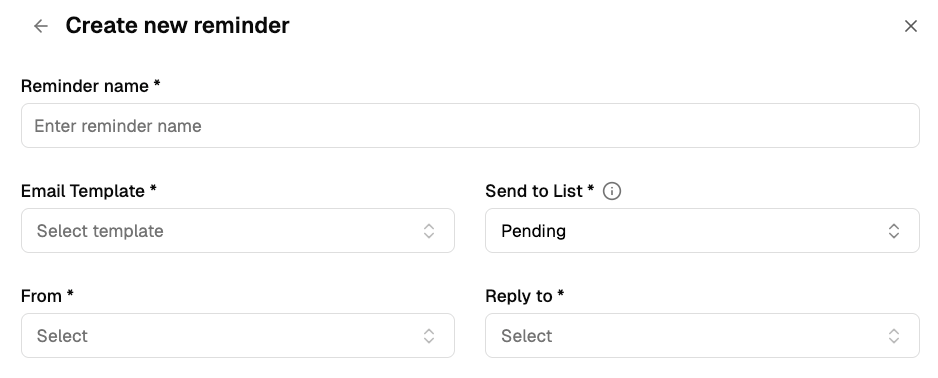
When creating a reminder, configure the following:
- Reminder Name: A clear name for the campaign
- Email Template: Select the Abandoned Cart email template you created
- List: Choose recipients (e.g., Abandoned Cart Pending List or filtered Smart/Static Lists)
- From/To: Set the sender and reply to details. Sender lists the various Organiser Profiles present in the Organisation. Whitelisted Reply to emails are listed for selection.
- When should the reminder be sent?
You have two options:
a. Send on a fixed schedule:
Send emails daily or on specific days of the week
Set a specific send time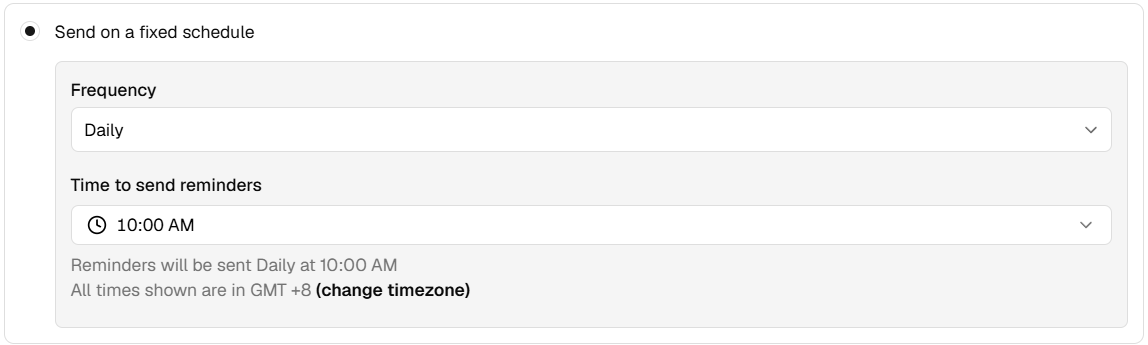
or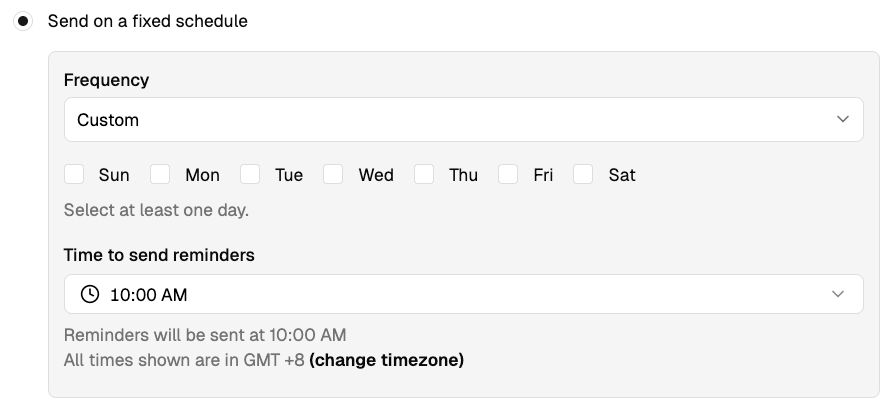
b. Send based on the cart age: (Recommended)
Send reminders based on how long ago the cart was abandoned
You can schedule up to 5 reminders
In this example, the potential attendees will be reminded of the abandoned cart after 3-day and 15-day after abandonment. Emails will be sent at the same time of day the attendee originally dropped off.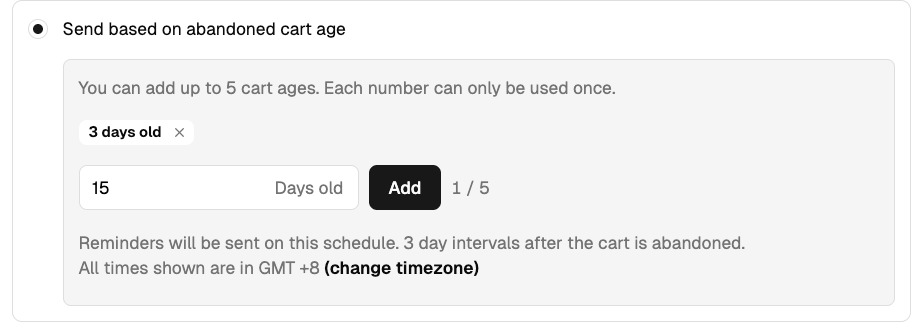
Once configured, save your reminders. Default is enabled status. Saved reminders can be edited/deleted.
3. View Abandoned Cart Records
Access the abandoned registrations in the grid view to review, filter, and manage your data.
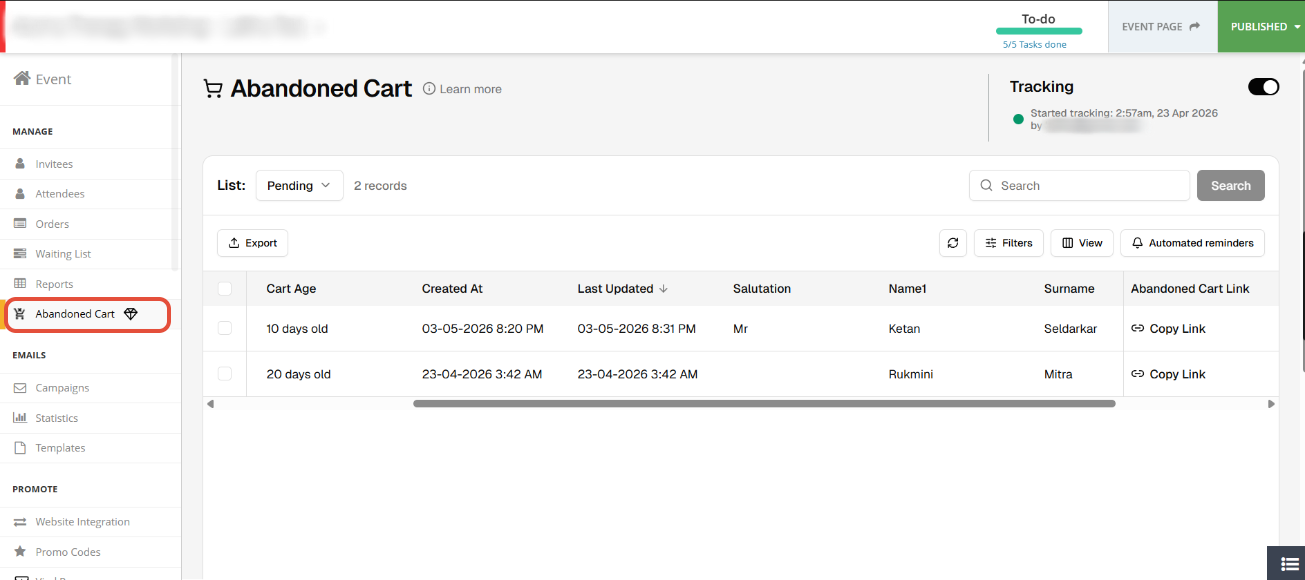
Option to Export to CSV is available.
The grid displays only the fields from the Buyer Form (First Name, Last Name, Email, and other buyer form fields), regardless of whether the Buyer Form is enabled or disabled.
All data entered into the Registration Form fields is captured, although it is not displayed on the grid. To view the complete set of data captured in the form fields, you may access the corresponding Abandoned Cart Link for that record.