
Overview
Managing a large number of past events can become difficult over time. To help streamline event lifecycle management, Gevme now supports Event Auto-Archiving.
This feature allows Organisation Admins to automatically archive events after a specified number of days following the event end date. It helps reduce manual maintenance while keeping the event dashboard organised and up to date.
Operations to Note
Configurable Archive Timing
Admins can enter the number of days after the event end date in the settings.
Example:
Setting the value to 14 means the event will be archived 14 days after the event ends.
Manual Unarchive Protection
If an event is manually unarchived after being auto-archived:
- The event will no longer be included in future automatic archiving
- This prevents repeated archive and restore cycles
Disable Auto-Archiving
Leaving the configuration field empty disables the feature entirely.
No automatic archiving will occur until a value is configured.
When will the Auto-Archive run
The auto-archive process runs daily at:
- 01:00 AM (GMT+8, Singapore Time)
Eligible events are processed in batches during the scheduled run.
How to Set it Up
1. Access the Admin Settings:
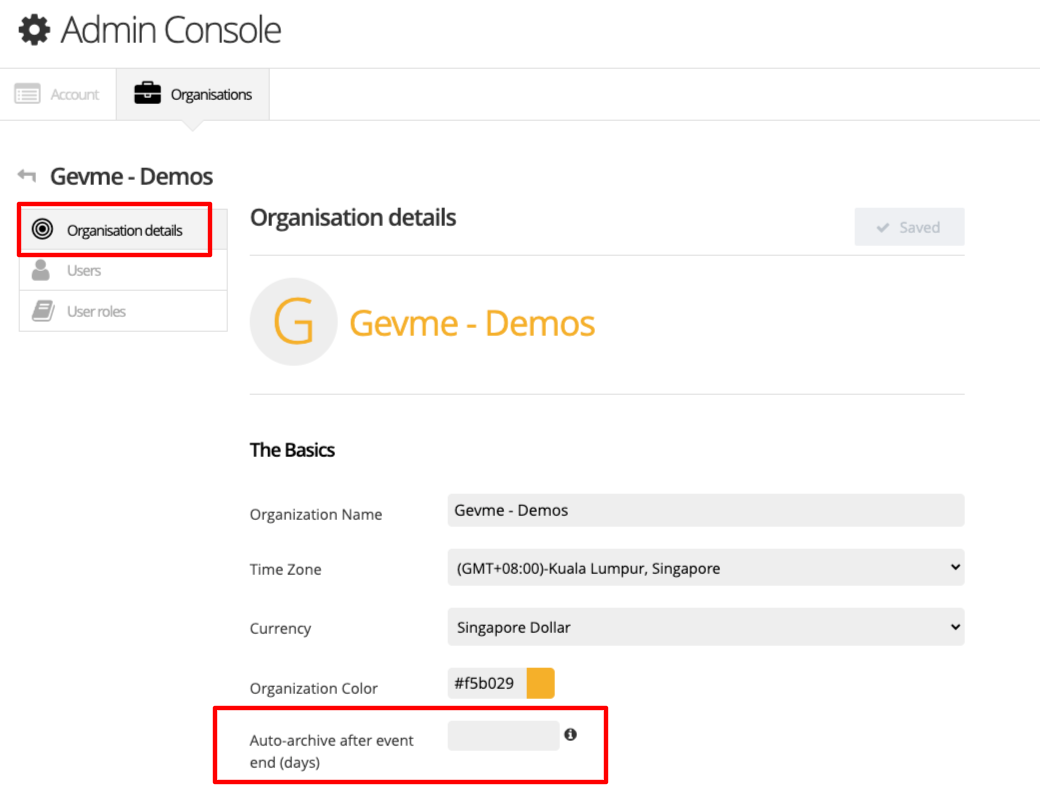
Log in as an Organisation Admin and navigate to the Admin Console; and go to Organisation Details

2. Locate the Auto-Archiving Setting:
The field accepts only non-negative integers.
Leave this field empty to disable automatic archiving.
3. Enter the Number of Days:
Specify how many days after the event ends the system should archive the event automatically.
Example:
Entering 14 archives events 14 days after the event concludes
Save Your Settings:
Save the configuration to apply the auto-archiving rule.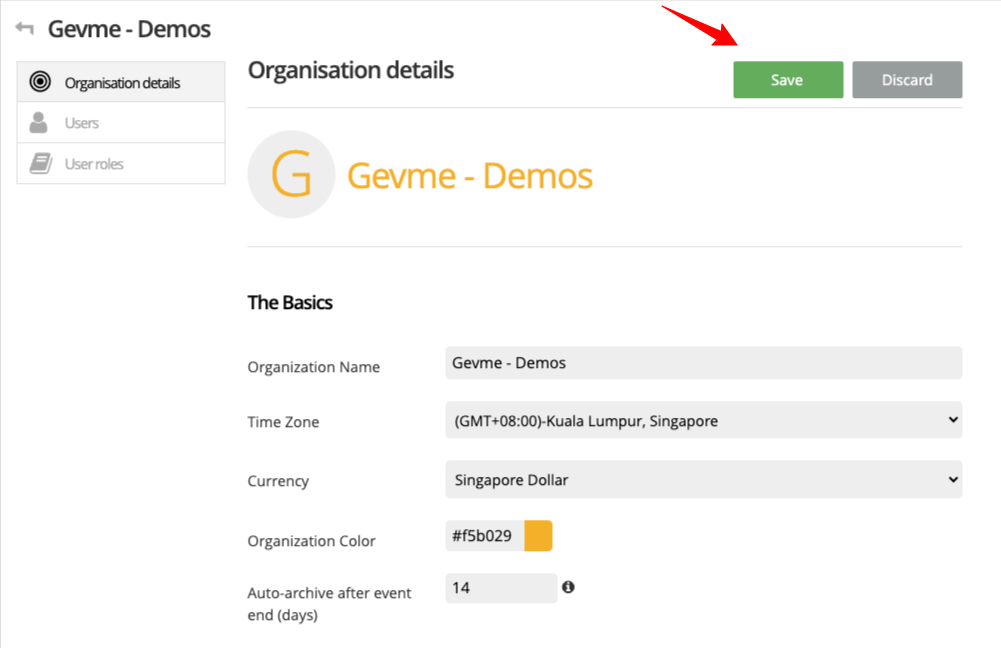
Events without End Date
For this case, auto-archiving will be based on the Start Date.
Events are Continuous and have no dates
These Events are excluded from auto-archiving, and you can archive them manually if required.
You can verify the event settings under Event Details

And archive the Event from the Active Events Listing.
