
Overview
We have introduced a new and improved navigation menu in Gevme Registration to make it easier and faster to access event settings and modules.
The new menu is designed to:
- Maximise your workspace.
- Reduce scrolling.
- Help you find features quickly.
- Let you personalise your navigation based on your workflow.
- Support keyboard navigation for power users.
New Navigation Menu
The navigation menu is located on the left-hand side of the Event Management page.
It now includes:
- Collapsible navigation panel
- Expandable menu groups
- Menu search
- Pin frequently used modules
- Keyboard shortcuts for faster navigation
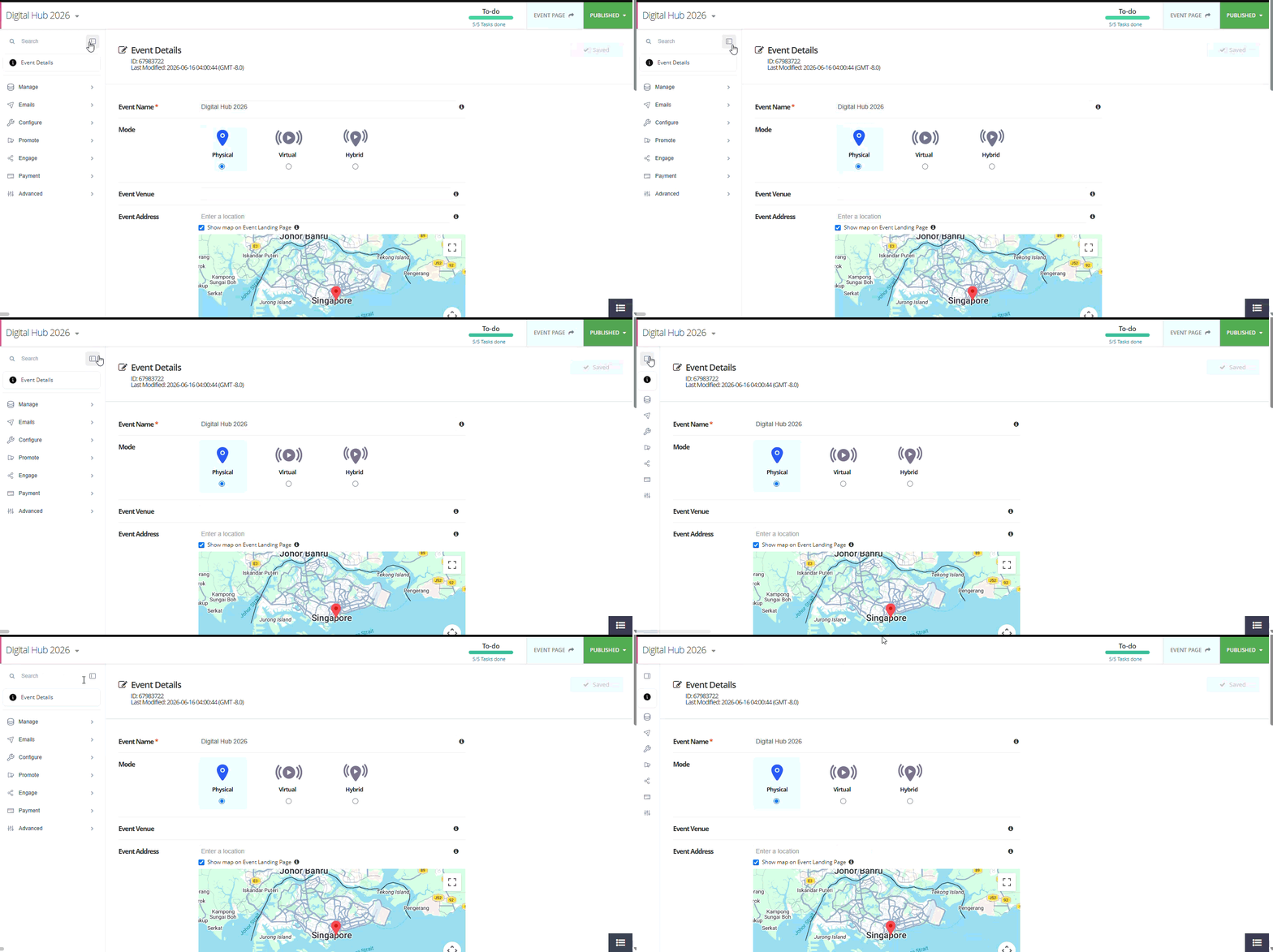
1. Collapse the Navigation Menu
When you need more screen space, you can collapse the navigation menu.
How to use
- Click the Collapse Menu icon at the top of the navigation panel.
- The menu will shrink, giving you a wider workspace.
- Click the icon again to expand the menu.
Benefits
- More space for forms and configurations.
- Better viewing experience on smaller screens.
- Less distraction while editing event settings.
2. Collapse or Expand Menu Groups
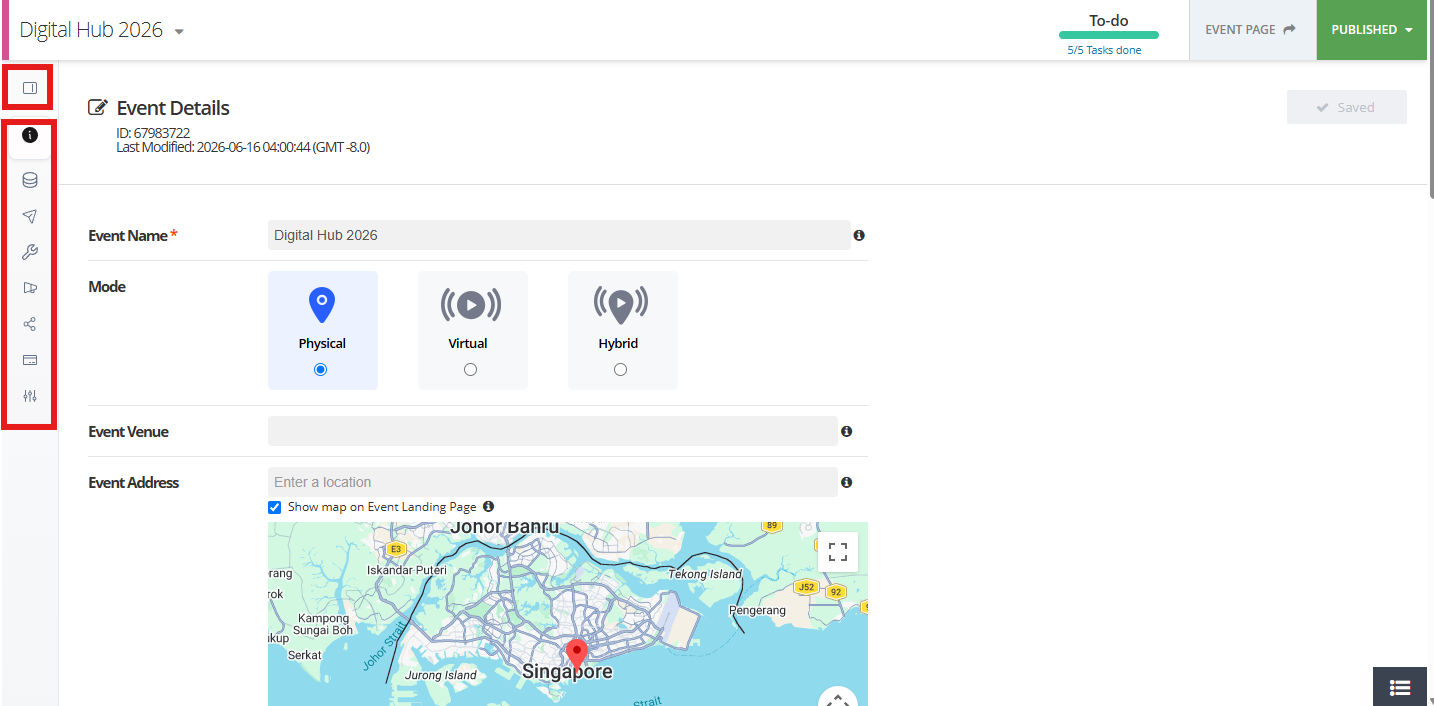
Navigation items are now organised into expandable groups such as:
- Configure
- Manage
- Emails
Each group can be expanded or collapsed independently.
How to use
- Click the arrow beside a menu group.
- Click again to expand it.
Benefits
- Reduces unnecessary scrolling.
- Keeps the menu organised.
- Focus only on the sections you're currently working on.
3. Search for Menu Items
Finding a specific feature is now much faster with the built-in search.
How to use
- Click the Find a feature... search box.
- Start typing the name of a module or feature.
- Matching menu items will appear instantly.
- Select the desired result to navigate directly.
Example
Search for:
- Forms
- Tickets
- Orders
- Registration Rules
instead of manually browsing through the menu.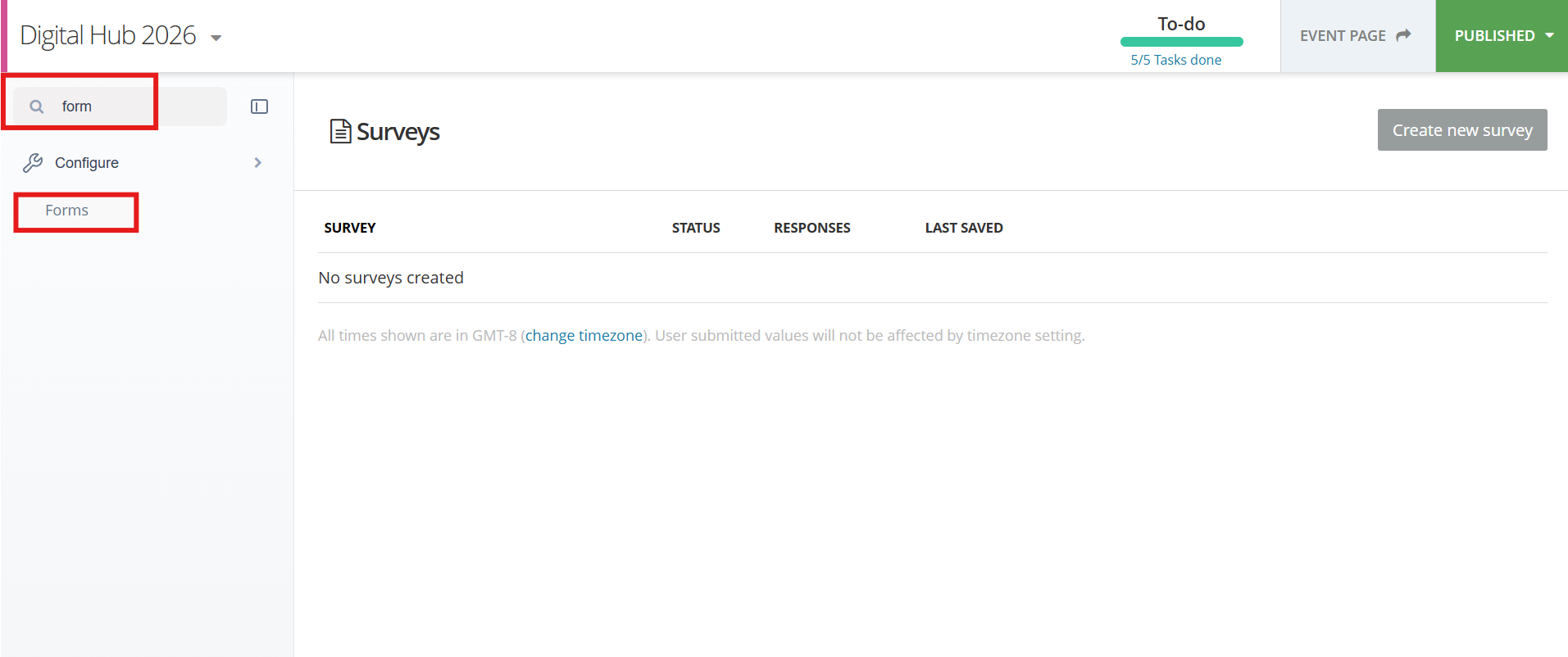
4. Pin Frequently Used Modules
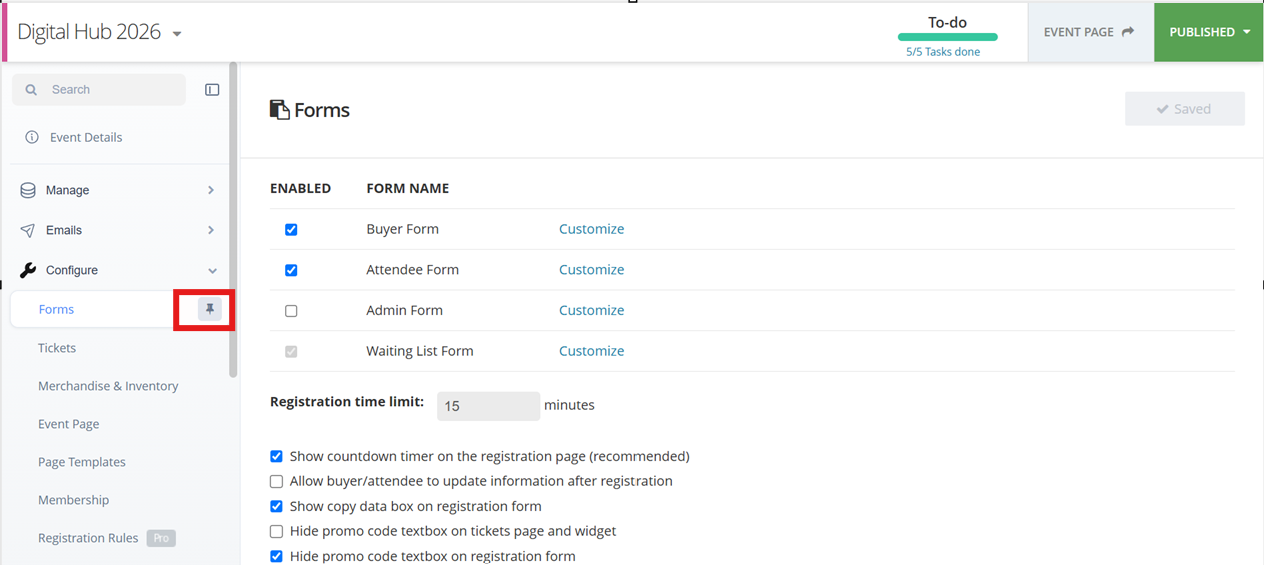
You can now pin your most frequently used modules for quick access.
Pinned items appear in the Pinned section near the top of the navigation menu.
How to pin a module
- Hover over a menu item.
- Click the Pin icon.
- The module will be added to your Pinned section.
To remove a pin
- Click the Pin icon again.
Benefits
- One-click access to commonly used pages.
- Personalise the navigation based on your workflow.
- Reduce the time spent navigating through menus.
5. Keyboard Shortcuts
The new navigation menu supports keyboard shortcuts for faster navigation.
| Shortcut | Action |
|---|---|
/ | Open the menu search |
↑ / ↓ Arrow Keys | Move focus between menu items |
Enter | Open the selected menu item |
Example workflow
- Press /.
- Type Tickets.
- Press ↓ to highlight the result.
- Press Enter.
You'll be taken directly to the Tickets configuration page without using your mouse.
Tips for Faster Navigation
- Pin the modules you use every day.
- Use / instead of manually browsing through the menu.
- Collapse menu groups you don't use often.
- Collapse the entire menu when editing long forms or complex configurations.
- Use the keyboard shortcuts to navigate even faster.
Summary of Improvements
| Feature | Benefit |
|---|---|
| Collapsible navigation menu | More workspace for content and configuration |
| Collapsible menu groups | Less scrolling and cleaner navigation |
| Menu search | Quickly locate any feature or module |
| Pinned modules | Easy access to frequently used pages |
| Keyboard shortcuts | Faster navigation without using the mouse |
The new navigation menu is designed to streamline your workflow, making it easier to manage events while reducing the time spent searching for settings and modules. Whether you're configuring registration forms, managing attendees, or updating event settings, the improved navigation helps you get to the right place more efficiently.