
A Quick Overview of the New Gevme User Interface
Events Listing Page
The enhanced Event Listing Page is designed to help organizers manage events more efficiently, especially when working with large numbers of events or recurring event series. Key event information is now visible directly from the listing page, reducing the need to open individual events and making navigation faster and more intuitive.
Users can:
- View important event information directly from the listing page.
- Mark frequently accessed events as Favorites.
- Filter and sort events to quickly find what they need.
- Navigate directly to related modules using the Go To menu.
- Export visible event data for reporting and analysis.
The main portions to note on this screen are the following: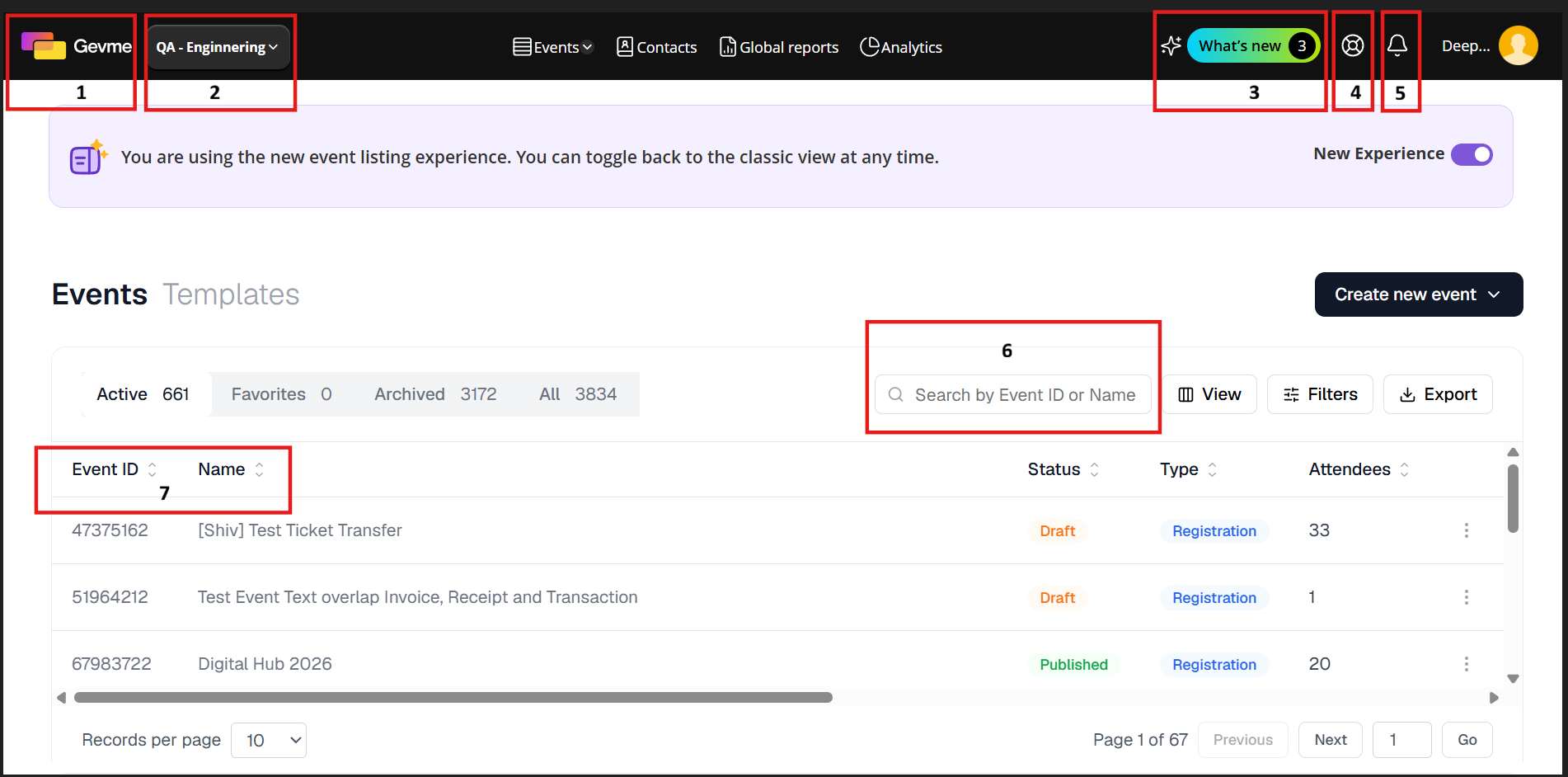
- Gevme logo
Clicking the GEVME logo in the top left-hand corner of your screen will always bring you organisation listing or event listing views. - Organisation List
Should you have access to multi-organisations, you will be able to select the organisation you wish to work on here. - What's New
Notify you with the latest releases, updates or tips of the products. - Gevme Support
Simply check out some articles, view Gevme Tutorials or create Tickets for the support required. - Notifications
This is the notifications icon that comes into play when you are collaborating with your colleagues. - Search
Utilise the search function to look for Event Name or Event ID - Event Name / ID
Listing of your events. Click on an event name to access and manage that event. - Event Overview
Status of the Event Draft, Published or Cancelled
Listing of your events, to click on an event name to access and manage that event.
The number of collaborators working together on this event.
Enhanced Key Features
View key event details directly from the listing page, including:
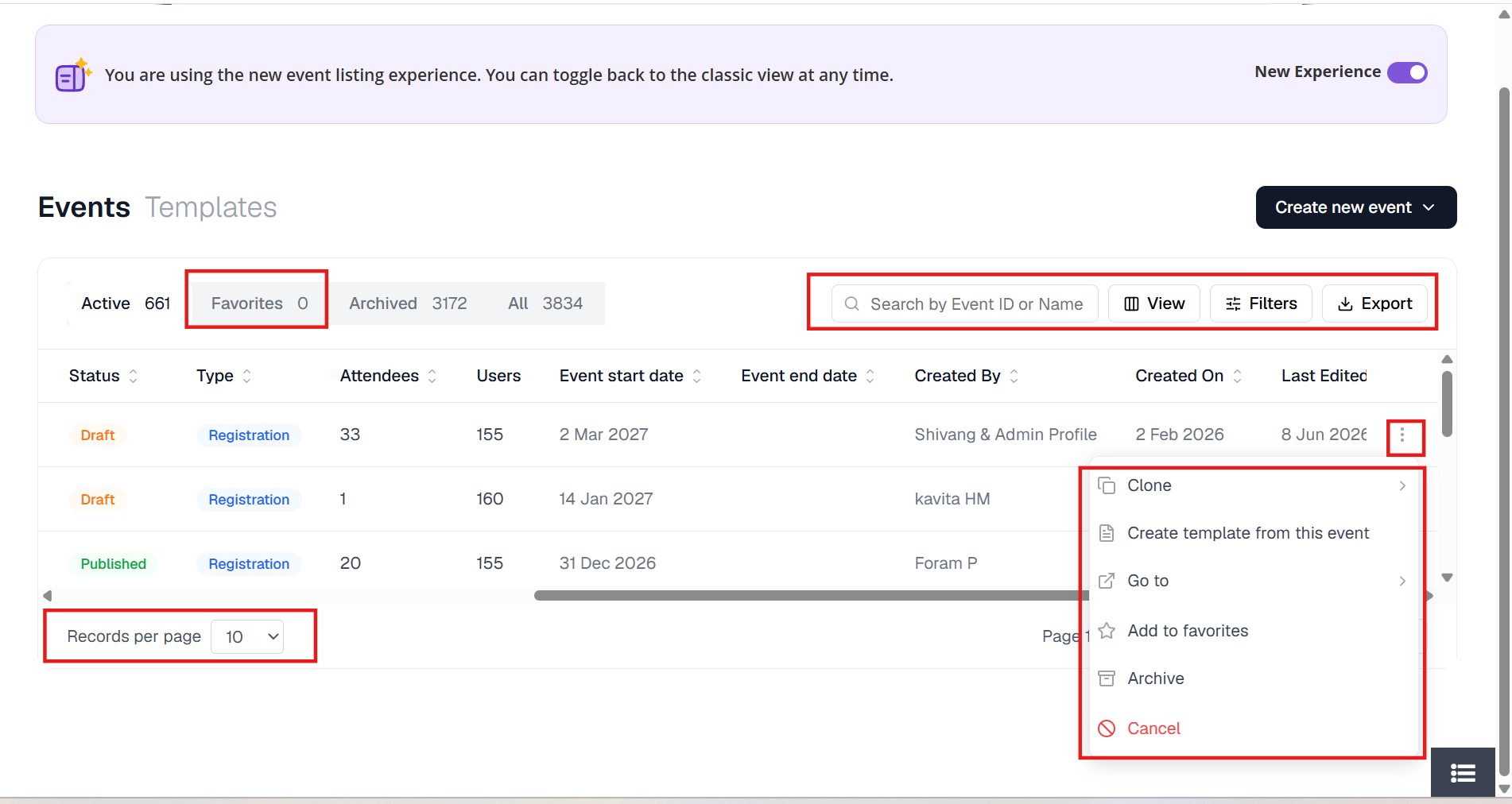
- Event ID
- Event Name
- Start Date
- End Date
- Event Type
- Status
- Number of Attendees
- Created and Modified Information
Favorites
- Mark and unmark events as Favorites.
- Quickly access frequently used events.
Quick Navigation
Use the Go To menu to jump directly to related event modules, such as:
- Attendees
- Orders
- Campaigns
- Other event management areas
Advanced Search & Filtering
Search and filter events using criteria such as:
- Status
- Event Type
- Start Date
- End Date
- Created Date
- Modified Date
- Continuous Events
Sorting
Sort event listings by commonly used fields to quickly organize and locate events.
Pagination
Navigate large event lists more efficiently with pagination support.
Export
Export the currently displayed event data, including applied filters and visible columns, in CSV format.
If you have access to more than 1 organization, you will see the following screen instead when you log in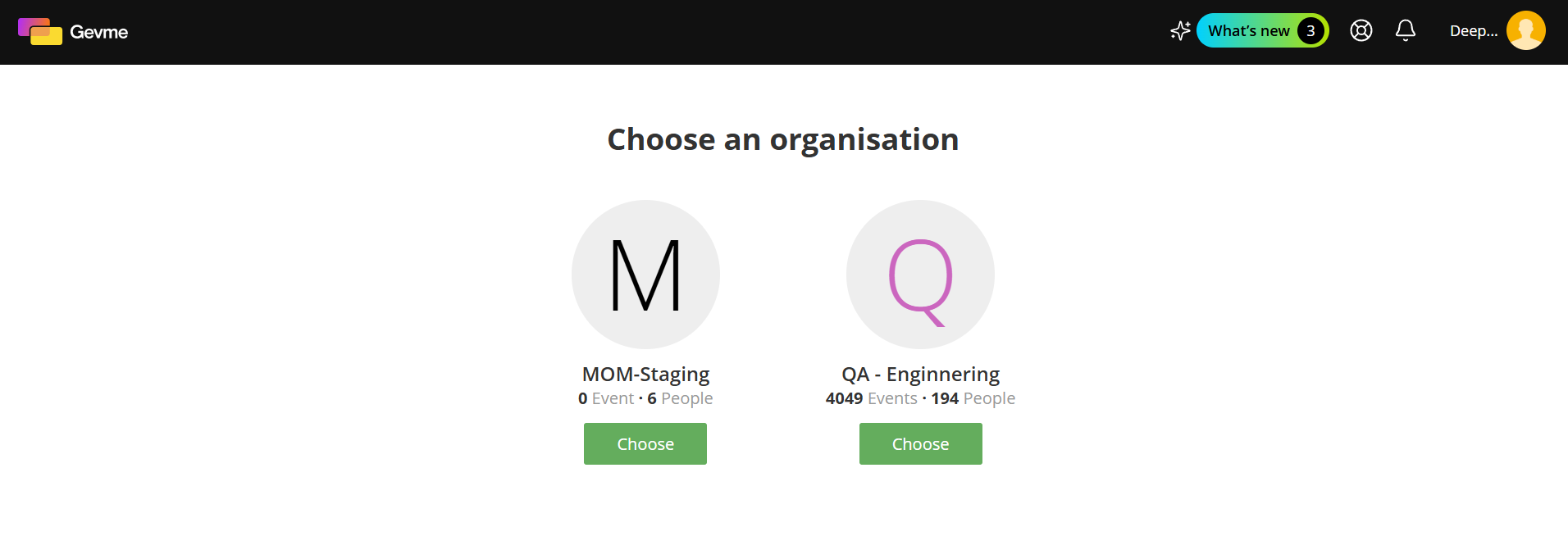
From there, choose the organization containing the event which you want to manage. This will then bring you to the Events Listing Page (described above) of that organization.
For more information on Organizations, please refer to Company, Organization, Contacts and Global Reports.
Event Home Screen
When you click on an event on the events listing page, you will be brought to the event's home page in the Gevme backend. This is where you manage your whole event.
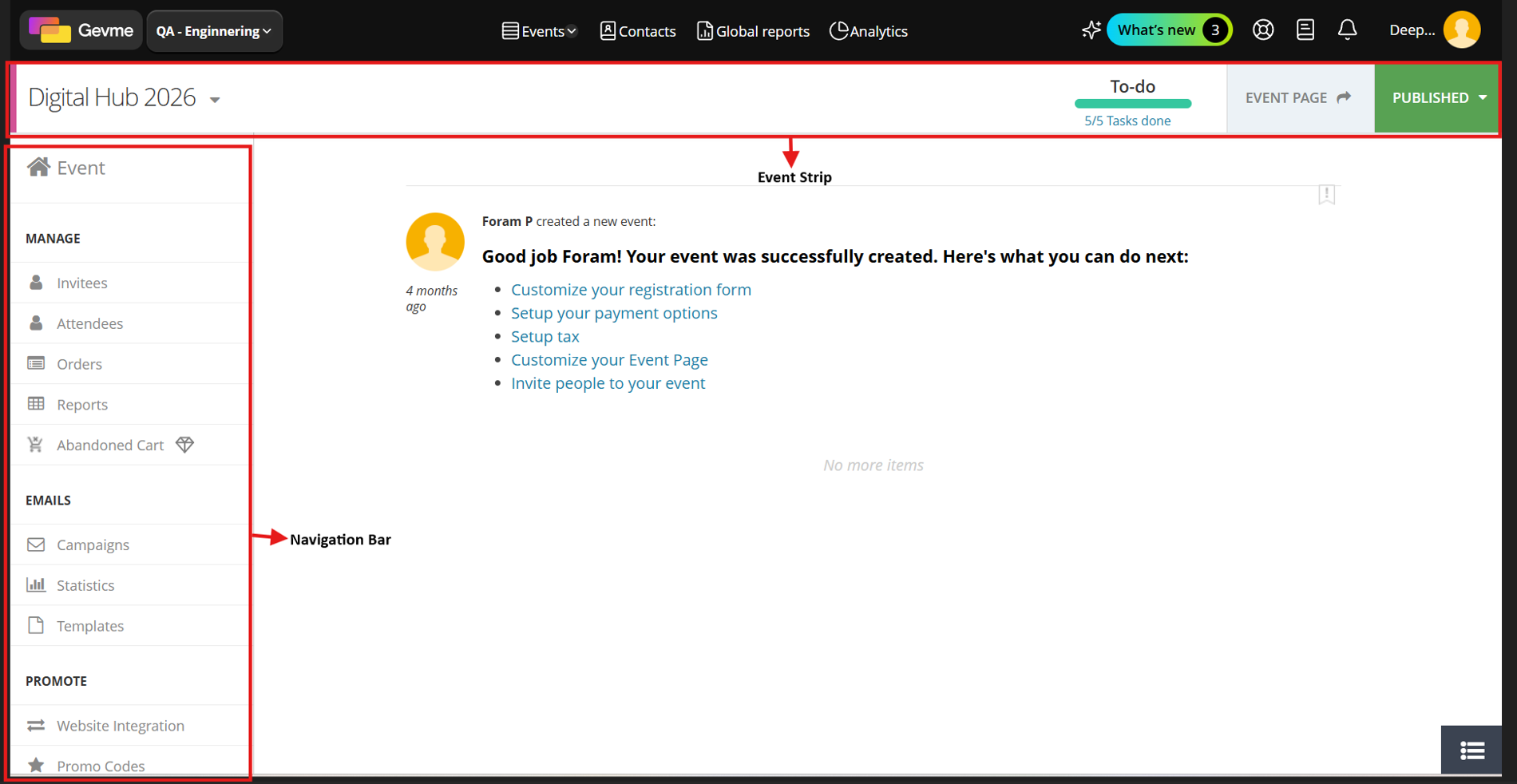
The main parts of the event home page to note here are:
- Event strip
Across the top of the screen is the event strip, which contains:
(1) The event name
(2) A quick link to the event page
(3) The status of the event - Main navigation
Along the left-hand side of the screen is the main navigation. This is where the main components and features of GEVME (related to the event you are currently managing) can be accessed.
Benefits for Event Organisers
- Save time by viewing key event information at a glance.
- Easily manage recurring or similarly named events.
- Quickly locate events using advanced filtering and sorting.
- Access important event modules with fewer clicks.
- Improve productivity when managing multiple events.
- Export event data for reporting and operational needs.
Ready to Try?
The enhanced Event Listing Page is now available in Gevme Registration. Navigate to your event listing page to explore the new filtering, sorting, favorites, export, and quick navigation capabilities designed to streamline event management.
If you have any questions or require assistance, please contact the Gevme Support team at cs@gevme.com