
Overview
Gevme is excited to introduce a powerful enhancement to our Event Management System: attendees can now apply promo codes directly within the registration form.
Previously, promo codes could only be entered on the Event Landing Page. With this update, attendees can enter a promo code when completing the registration form. The system validates the promo code instantly and applies any eligible discounts or offers in real time.
If a promo code is invalid, expired, or incompatible with the selected tickets, a clear error message will appear immediately below the promo code input field - ensuring a smooth and transparent registration experience.
How to Set it Up
1. Access Event Settings:
Navigate to the Forms page within your event dashboard.
2. Enable or Disable Promo Code Field:
Locate the checkbox labelled Hide promo code text box on registration form.
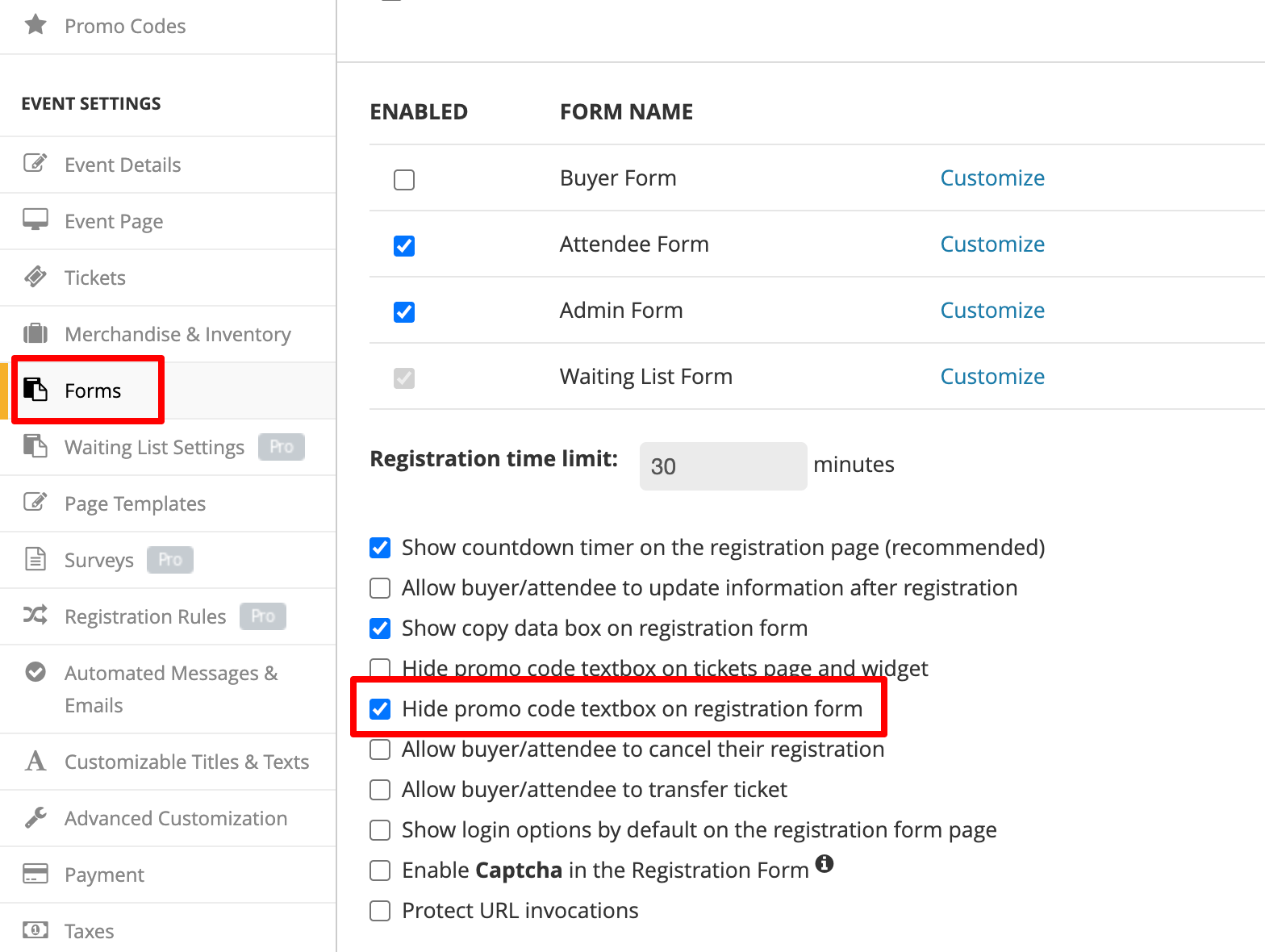
By default, this checkbox is selected, which means the promo code field is hidden.
Uncheck this box if you want the promo code field to be visible on the registration form.
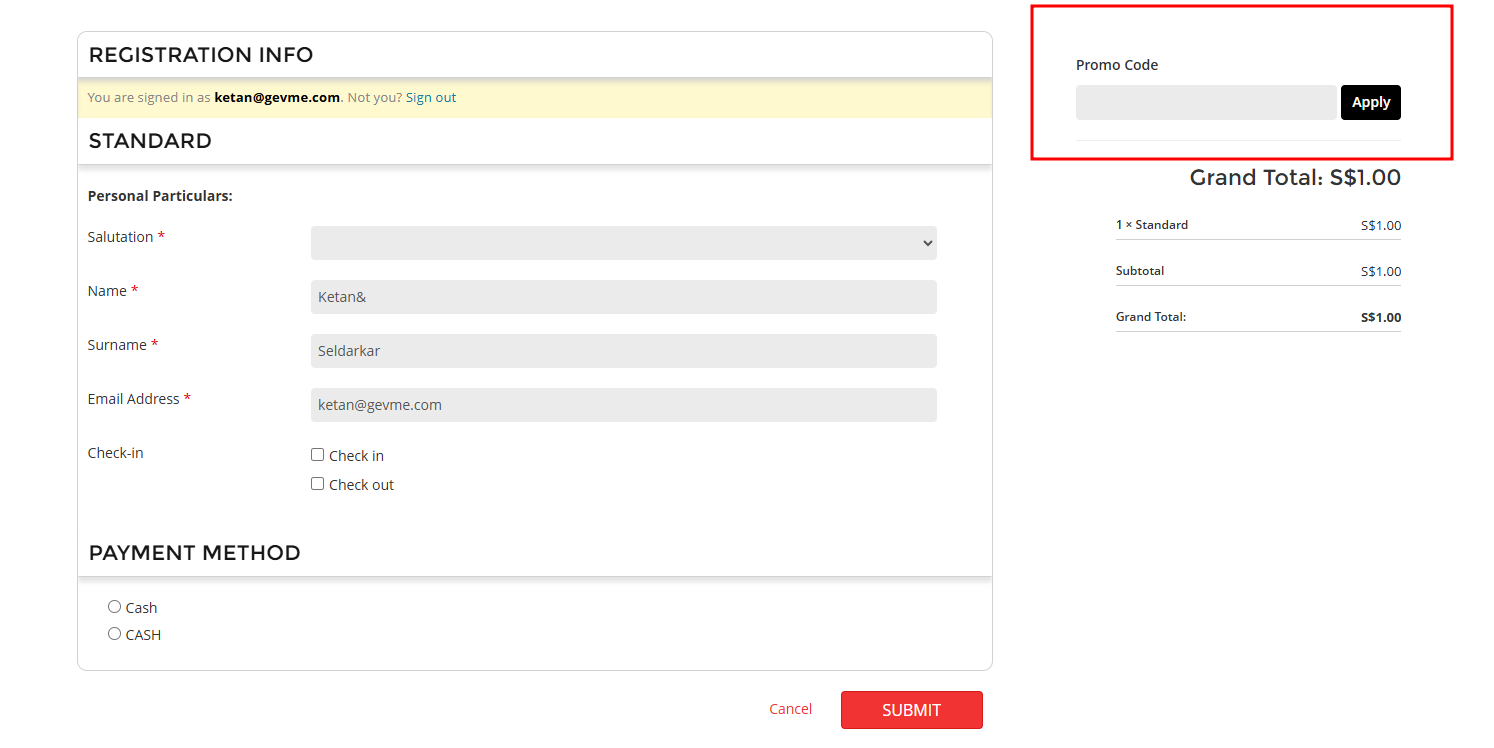
3. Configure Promo Codes:
Ensure your promo codes are correctly configured with the appropriate rules, usage limits, and validity. Refer to the Promo Codes configuration article for detailed setup instructions.
4. Publish and Test:
Preview the registration form to confirm that the promo code field appears as expected.
Test applying, updating, and removing promo codes to confirm real-time validation and pricing updates.
Below is a list of possible system messages and when they appear.
Condition | Error Message | Message Image reference |
|---|---|---|
Promo code is invalid | Invalid promo code. | 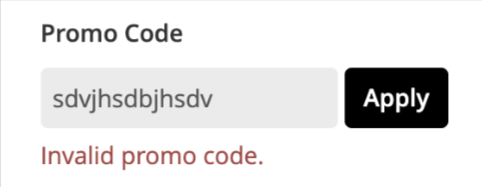 |
The promo code does not apply to selected tickets. | The promo code <code> does not match the selected ticket criteria. | 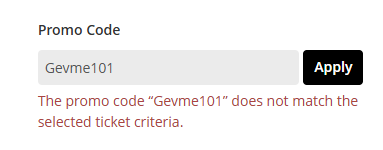 |
Promo code has reached usage limit | Sorry, this promo code <code> has expired or reached its maximum number of uses. | 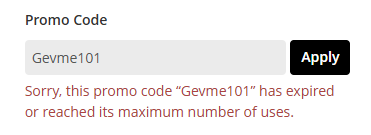 |
Promo code is outside the valid date range | Sorry, this promo code <code> has expired or reached its maximum number of uses. | 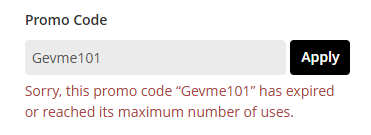 |
Promo code criteria do not match form field inputs (e.g. required form field value mismatch) | The promo code <code> does not match the selected ticket criteria. | 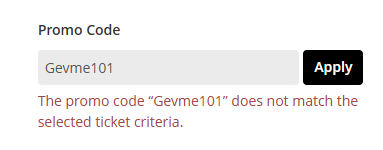 |
Promo code required to reveal ticket on landing page is removed during form submission | Promo code required for the selected ticket type. |  |