
Overview
In Gevme, when a buyer or attendee registers for the event but they haven't made a payment yet, by default, they will receive the Order Acknowledgement Email together with an Invoice in PDF format.
This invoice is generated by the system for pending payments and can also be downloaded from the Order from the Event backend.
The invoice layout is fixed and cannot be changed.

How to set it up
1. Event logo
This is retrieved from Event Details > Logo
2. Event details
This information is pulled from the Event name, Date & Time and Location at the Event Details
3. Issued by
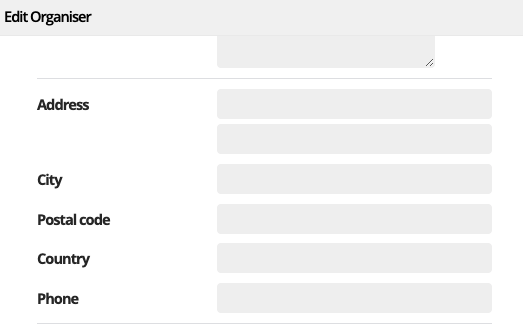
Here are the details of the billing company. Event Organiser details set up at Event Details > Organiser
The relevant input under Edit Organiser will be inlet for Issued By
4. Invoice No.
It is system-generated and unique to each purchase.
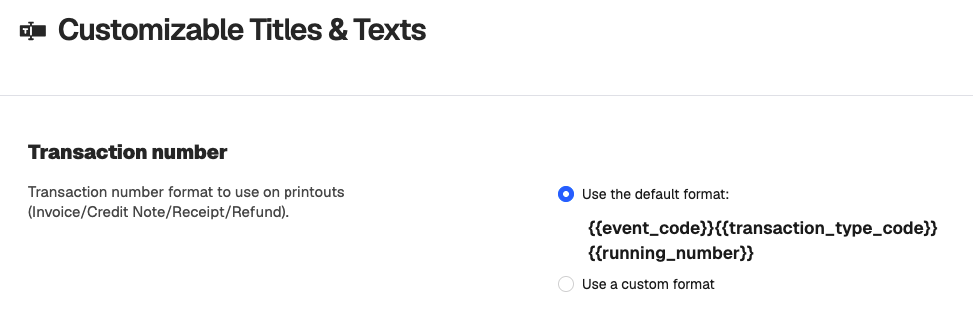
To set a prefix for transaction documents, you can set it up at
Configure > Customizable Titles & Texts > Transaction Number > Use a custom format
 Refer to this article for more details.
5. Tax
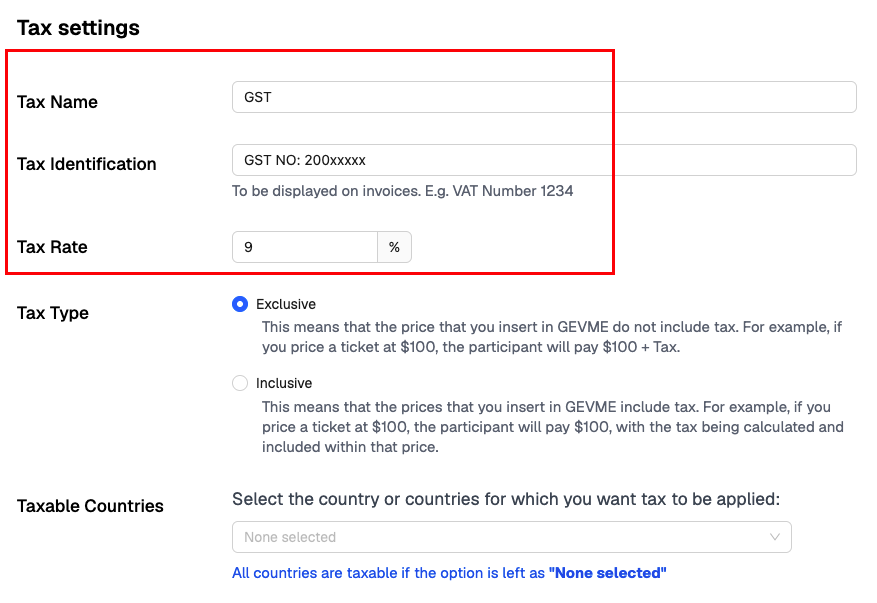
This is set up under Payment > Tax
If the Tax is enabled, the Tax Identification value is retrieved for No. 5; and the Tax Name/Rate is for No. 11.
6. Issue for
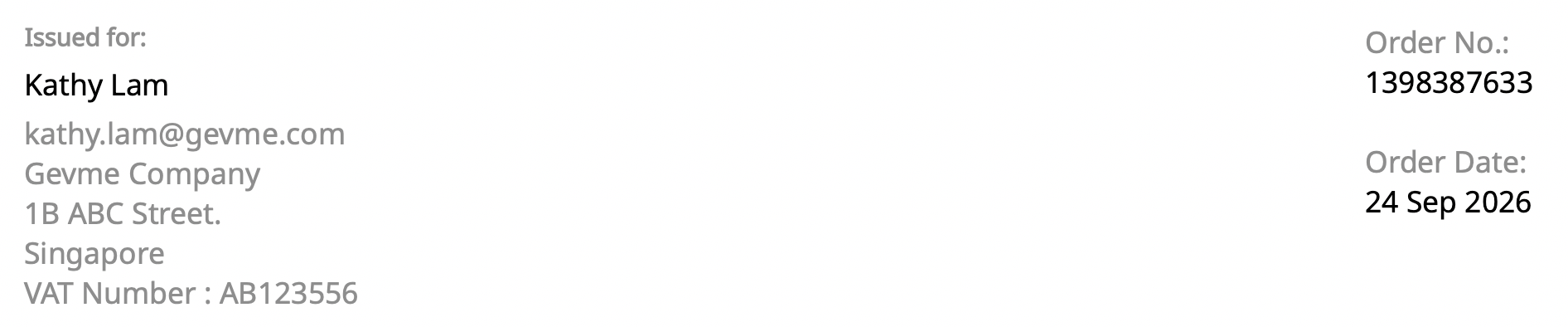
Here are the details of the Buyer. Some values under Form > Buyer Buyers are used for this section.
Some customisation can be done here.
| Default | Enhanced Layout |
|---|---|
| firstname + lastname | firstname + lastname company billing_country company_address invoice_field_**** |
 |  |
a. Buyer Form
The Fields are picked up from the Buyer Form
If you do not enable Buyer Form, it is important to have the same field / field names available in both Attendee Form and Buyer Form, the values in Fields will be picked up accordingly by the system.
b. Set up Fields for Gevme's Invoice.
Field Name are what Gevme will use. You may determine your preferred field label.
Form Type: Buyer Form
Field Type: select the appropriate field from your predefined fields or customised field
Field Name: company_address
Field Label: HQ's Main Address
Invoice Display: the value added in the field
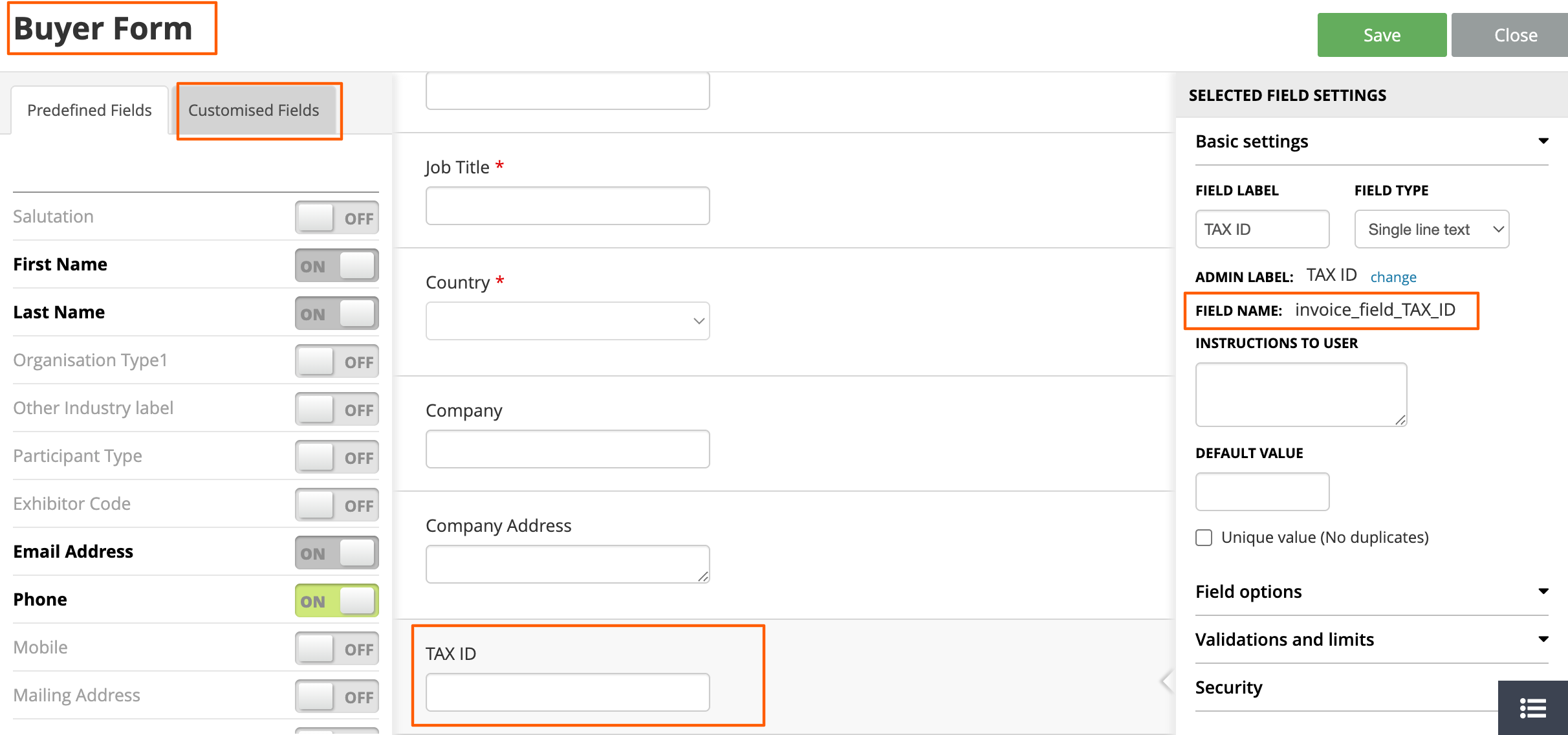
Learn more about the custom field in this article.
8. Order number
This is system-generated and unique to each buyer
9. Order details
Include the Name of Attendee(s), the ticket name, the ticket quantity, the ticket price, and the total price.
10. Promo Code
Details of the Promo codes & Discounts applied on this Order. For Promo code setup, refer to this article.
11. Tax & Amount of Tax breakdown
If you enable Tax in the event, the invoice will show the amount of tax.
Read more about paid events and tax from this article.
12. Payment methods
This section will show all payment methods set up for the event 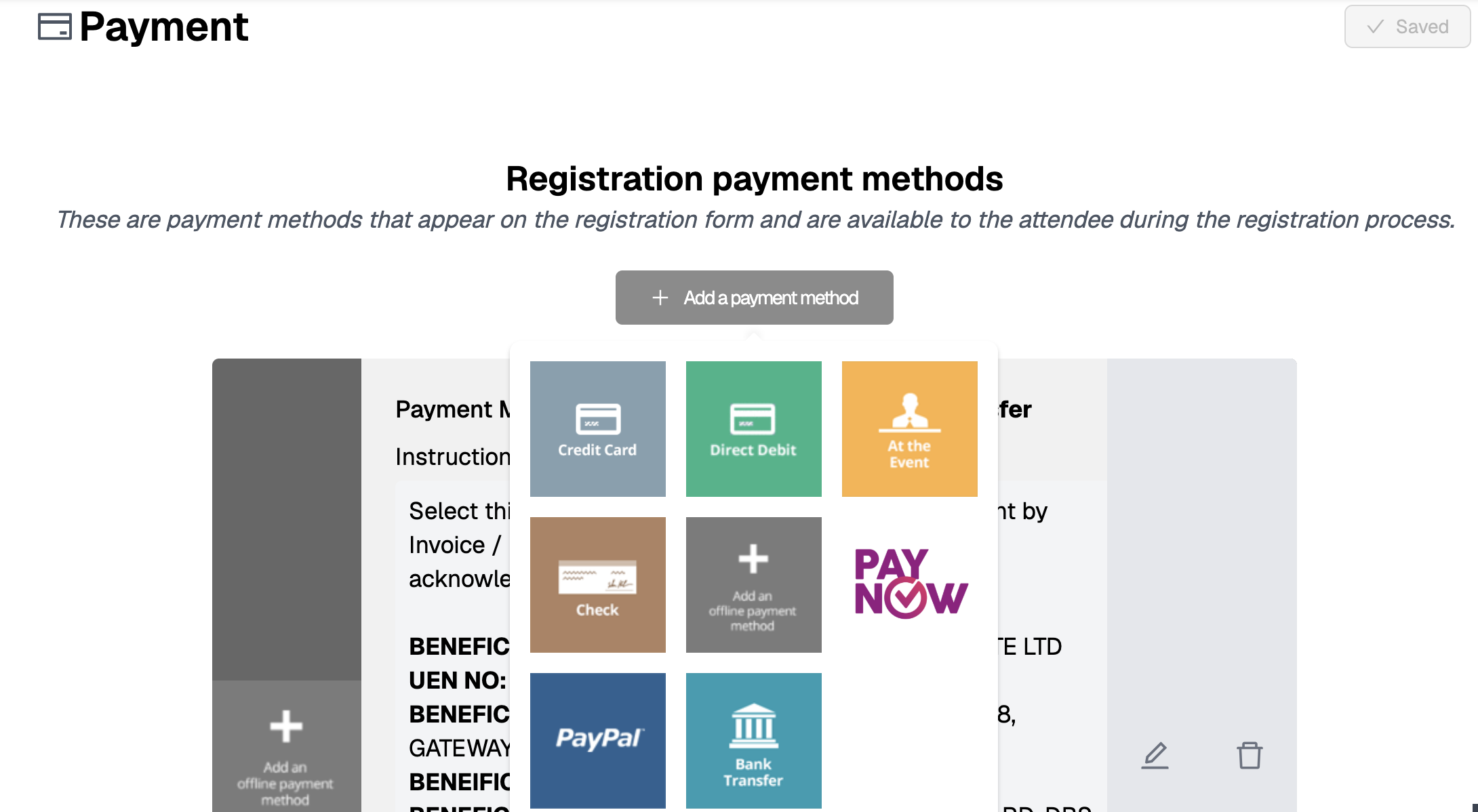
Read more about setting up payment methods for your event from this article.
13. Instructions on Invoice
To set an additional note in these documents, you can set it up at
Configure > Customizable Titles & Texts > Instructions on printouts
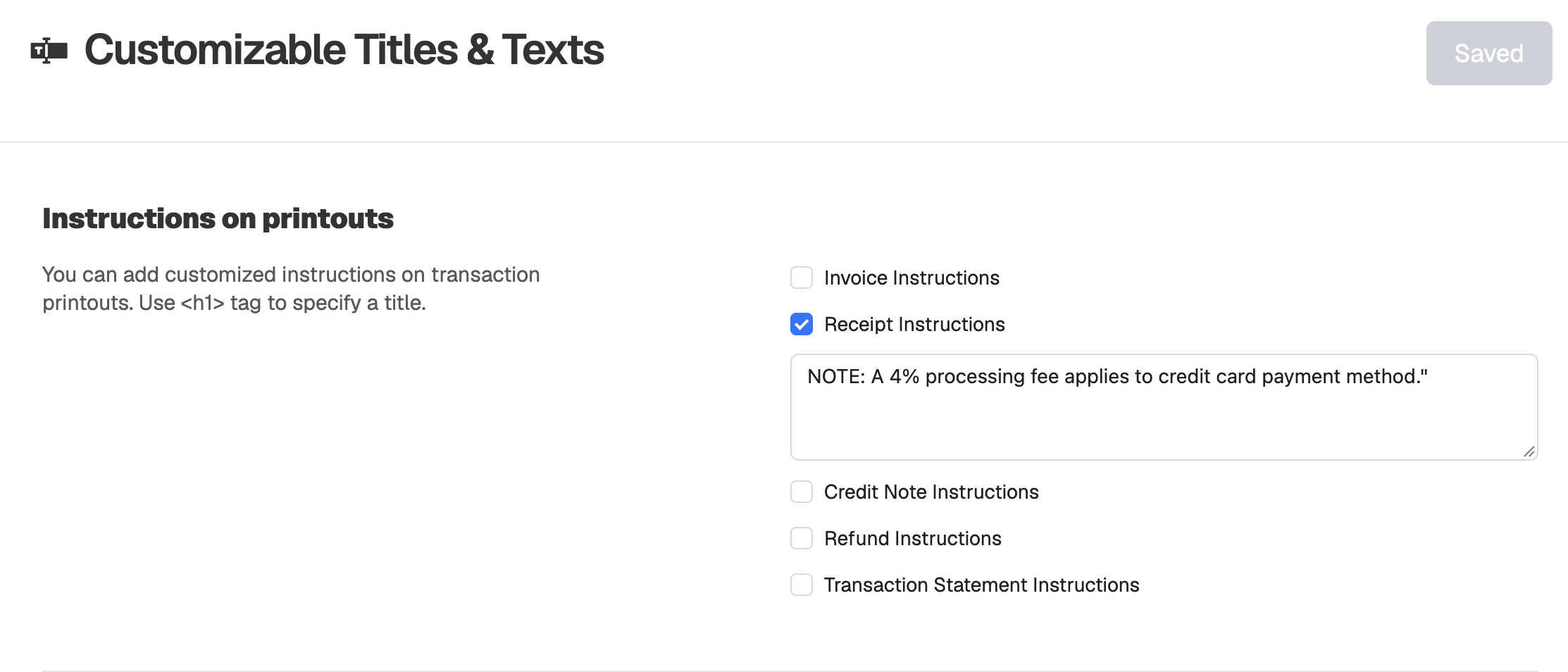 More details can be found in this article